
What it does
Quick Order Form for WooCommerce gives wholesale buyers one page where they can find products, type quantities and put the whole order in the cart with one click. The form lists your products with optional SKU and price columns, a live search by product name or SKU, and pagination for large catalogues.
The form only lists products the visitor is allowed to see, so it respects catalogue visibility and visibility rules from other plugins, such as Product Visibility by User Role. Prices are shown exactly as the customer would see them anywhere else, including role and sale prices.
Quick Order Form Pro for WooCommerce removes the typing. Buyers can paste a SKU list or upload a CSV and get a report of every line that could not be added, save their cart as a named list and reorder it later, and order variations straight from the grid.
Where to find it: WooCommerce → Quick Order Form
Requirements
- WordPress 5.6+ and PHP 7.4+ (Free and Pro)
- WooCommerce 4.0+, installed and active (Free and Pro)
- Compatible with WooCommerce High-Performance Order Storage (HPOS) and the block-based Cart and Checkout
Installation
- Free: go to Plugins → Add New, search for “Quick Order Form for WooCommerce” by B2B Managers, then install and activate it. You can also upload the zip under Plugins → Add New → Upload Plugin.
- On activation the plugin creates a page called Quick Order that holds the
[wmqof_form]shortcode. If that page already exists, it is reused. - Pro: Pro is a full replacement for the free plugin and reads the same settings and order form page. When you activate it, Pro deactivates the free plugin for you and shows a notice: “The free version was deactivated automatically — your settings and order page carried over.”
- Upload the Pro zip under Plugins → Add New → Upload Plugin and activate it.
- Go to WooCommerce → Quick Order Form, open the License tab, paste the licence key from your order email (it looks like
WM-XXXX-XXXX-XXXX-XXXX) and click Activate License.
Publish your order form
- Activate the plugin. A Quick Order page with the
[wmqof_form]shortcode is created for you. - Go to WooCommerce → Quick Order Form. Set Products per page, choose the Columns to show and pick what happens After adding to cart. Click Save Settings.
- Add the Quick Order page to your menu under Appearance → Menus or in the site editor, so buyers can find it.
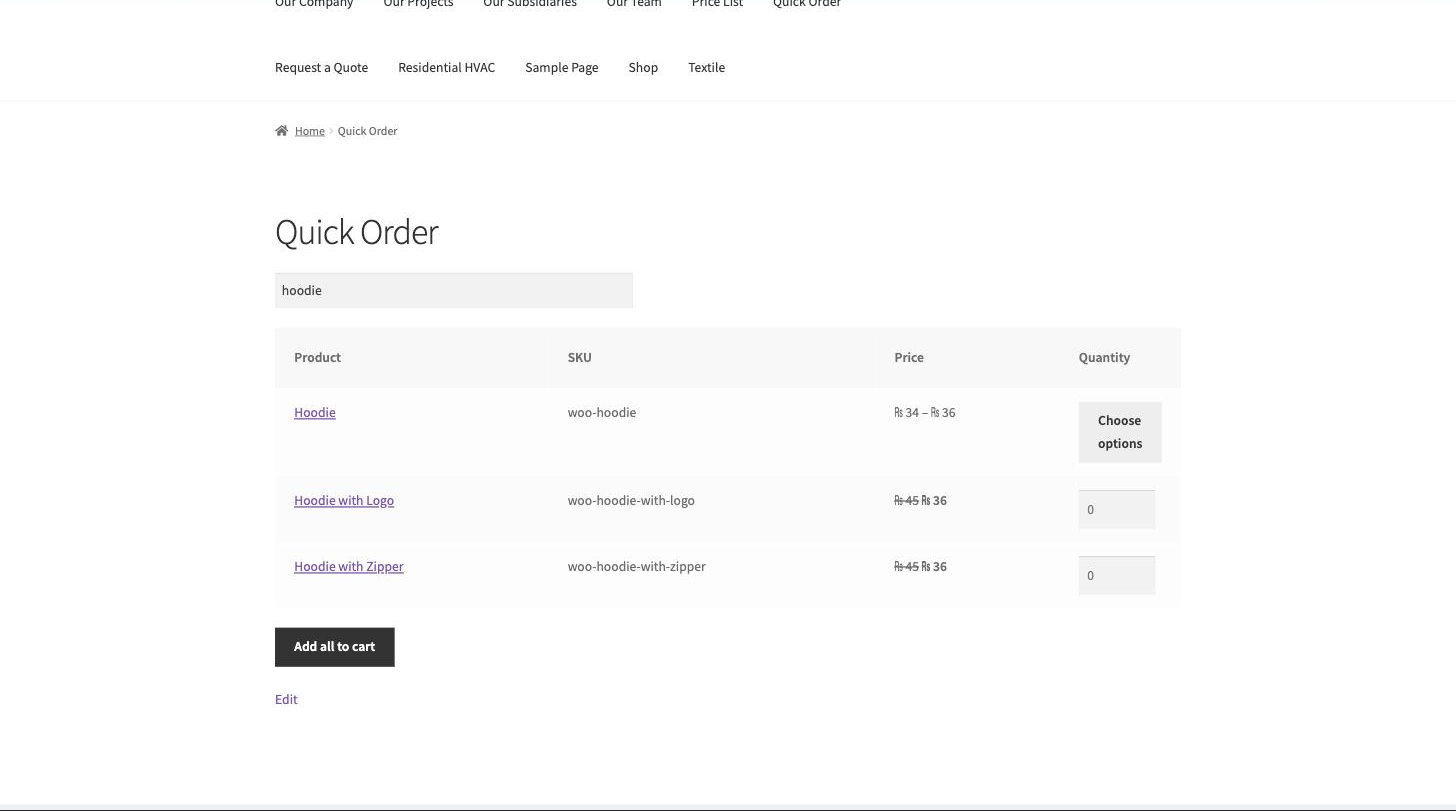
- Open the page, type in the search box to filter by name or SKU, enter quantities on the rows you want and click Add all to cart.
- Pro: with your licence active, the Settings tab shows Pro features on the form. Leave the boxes ticked to show the Order by SKU list box, saved lists and one row per variation.


Settings reference
| Setting | What it does | Edition |
|---|---|---|
| Products per page | How many products each page of the form lists, from 5 to 100. Default: 20. | Both |
| Columns | “Show SKU column” and “Show price column”. Default: both on. | Both |
| After adding to cart | “Go to the cart” or “Stay on the order form (show a confirmation)”. Default: Go to the cart. | Both |
| Order form page | Shows the page created on activation, which holds the [wmqof_form] shortcode. | Both |
| Pro features on the form | Show the “Order by SKU list” box. Default: on. These three options appear only while the licence is active. | Pro |
| Pro features on the form | Let logged-in buyers save and reorder lists. Default: on. | Pro |
| Pro features on the form | Expand variable products into one row per variation. Default: on. | Pro |
What the form shows
The form lists published products in alphabetical order, filtered to the ones the visitor can see. Use Previous and Next to page through them. Typing in the search box replaces the rows with products whose name or SKU matches, after a short pause.
Each simple product that is in stock and can be bought has a quantity box. Out-of-stock products show Out of stock. In the free version, variable and other product types show a Choose options button that links to the product page.
In Pro, with variation rows switched on, a variable product shows Options below and one indented row per variation, each with its own SKU, price and quantity box.
Adding to the cart
Add all to cart adds every row with a quantity of 1 or more. Before each product goes in the cart, the form runs the same add-to-cart checks as the product page, so stock, purchasability and per-product quantity rules (such as those from Min Max Order Rules) apply, and any problem shows as a notice on the form. Rules that check the whole cart still flag their problems on the cart page.
If at least one product was added and After adding to cart is set to the cart, the buyer goes to the cart. Otherwise they return to the form with a message such as “3 products added to your cart.” and a View cart → link.
Pro: order by SKU list
The Order by SKU list box sits above the product table. Buyers paste one product per line as SKU then quantity, or upload a CSV file of up to 2 MB, and click Add these to my cart.
The paste box accepts commas, semicolons, tabs or spaces between the SKU and the quantity, and the quantity can come first or last. A line with only a SKU adds one. A first line starting with SKU, Item, Code or Product is treated as a header and skipped. If the same SKU appears twice, the quantities are added together. A variation can be ordered by its own SKU.
The buyer sees how many lines and items were added, and an error notice for each line that was not. Valid lines still go in the cart.
- “no product with that SKU.”
- “that product is not available to you.”
- “out of stock.”
- The reason WooCommerce or another plugin gave, such as a minimum or maximum quantity message, shown next to the SKU. If no reason was given, the line says “could not be added.”
- Lines the parser cannot read, with a reason such as “Quantity must be 1 or more.”
Pro: saved lists
Logged-in buyers see a Saved lists panel on the order form. They fill their cart, type a name such as “Weekly restock” and click Save my current cart. Each buyer can keep up to 25 lists.
Lists are stored on the customer’s account by SKU, so products without a SKU are left out. Add to cart puts the whole list back through the same checks as a pasted list, at today’s prices and stock, and reports anything that could not be added. Delete removes the list.
Shortcodes
| Shortcode | What it does |
|---|---|
[wmqof_form] | Outputs the quick order form. It has no attributes. The plugin creates a “Quick Order” page holding it when you activate it. |
Free and Pro compared
| Feature | Free | Pro |
|---|---|---|
| One-page order form with live search by name or SKU | Yes | Yes |
| Quantity on every row and one “Add all to cart” button | Yes | Yes |
| Pagination, SKU and price columns, redirect choice | Yes | Yes |
| Respects catalogue and role-based visibility | Yes | Yes |
| Variable products | Link to the product page | One row per variation |
| Paste a SKU list | No | Yes |
| Upload a CSV | No | Yes |
| Report of lines that could not be added | No | Yes |
| Saved lists with one-click reorder | No | Up to 25 per customer |
Troubleshooting
| What you see | What to do |
|---|---|
| A product is missing from the form or the search. | The form lists published products the visitor is allowed to see. Check the product’s catalogue visibility and any role-based visibility rules, and test while logged in as that kind of customer. |
| A variable product only shows “Choose options”. | In the free version variable products link to their product page. In Pro, tick Expand variable products into one row per variation and make sure your licence is active. |
| After adding, the buyer stays on the form. | After adding to cart is set to stay, or nothing could be added. Check the notices at the top of the form. |
| Some items are not added and the form shows a minimum or maximum error. | Before each item goes in the cart, the form runs the same checks as the product page, so quantity rules (for example from Min Max Order Rules) can refuse it. The other items are still added. Ask buyers to order in the quantities your rules allow, or adjust the rules. |
| The Order by SKU list box or Saved lists panel is missing (Pro). | Check the boxes under Pro features on the form and your licence on the License tab. Saved lists only show to logged-in buyers. |
| “None of the products in your cart have a SKU, so this list could not be saved.” (Pro) | Saved lists are stored by SKU. Give your products SKUs under Product data → Inventory. |
| A pasted line says “no product with that SKU.” (Pro) | Check the SKU matches the product or variation exactly, and that there is no extra text on the line. |
Uninstalling
Deactivating either plugin removes nothing. Deactivating Pro also stops its scheduled licence check.
Deleting the free plugin removes its settings and the stored order form page ID. While Pro or the B2B Managers Suite is installed (active or not), it removes nothing, because they use the same settings. The Quick Order page itself is left in place.
Deleting Pro always removes your licence data and its scheduled licence check. It keeps every customer’s saved lists while the suite is installed, and the settings and page ID while the free plugin or the suite is installed. With neither installed, it removes them all.
Questions people ask
Does it work with my pricing plugins?
Yes. The price column shows the same price the customer sees elsewhere on your store, including role and sale prices.
Can hidden products appear in the search?
No. The form only lists products that are visible to the current visitor, using WooCommerce’s catalogue visibility and any visibility rules from other plugins.
Can I move the form to another page?
Yes. Place the [wmqof_form] shortcode on any page. The “Stay on the order form” option returns buyers to the page the plugin created, so keep that page if you use it.
What format does the SKU paste box accept? (Pro)
One product per line: the SKU and the quantity, separated by a comma, semicolon, tab or space. A header row is skipped and duplicate SKUs are added together.
Are saved lists re-priced? (Pro)
Yes. Lists store SKUs and quantities only, so each reorder uses today’s prices and stock.
What happens if my licence expires?
The order form keeps working as in the free version. Bulk SKU pasting, CSV upload, saved lists and variation rows pause, and saved lists are kept for when a key is activated.
Will my settings carry over when I upgrade to Pro?
Yes. Pro reads the same settings and order form page as the free plugin. Activate Pro and it deactivates the free plugin for you.