
What it does
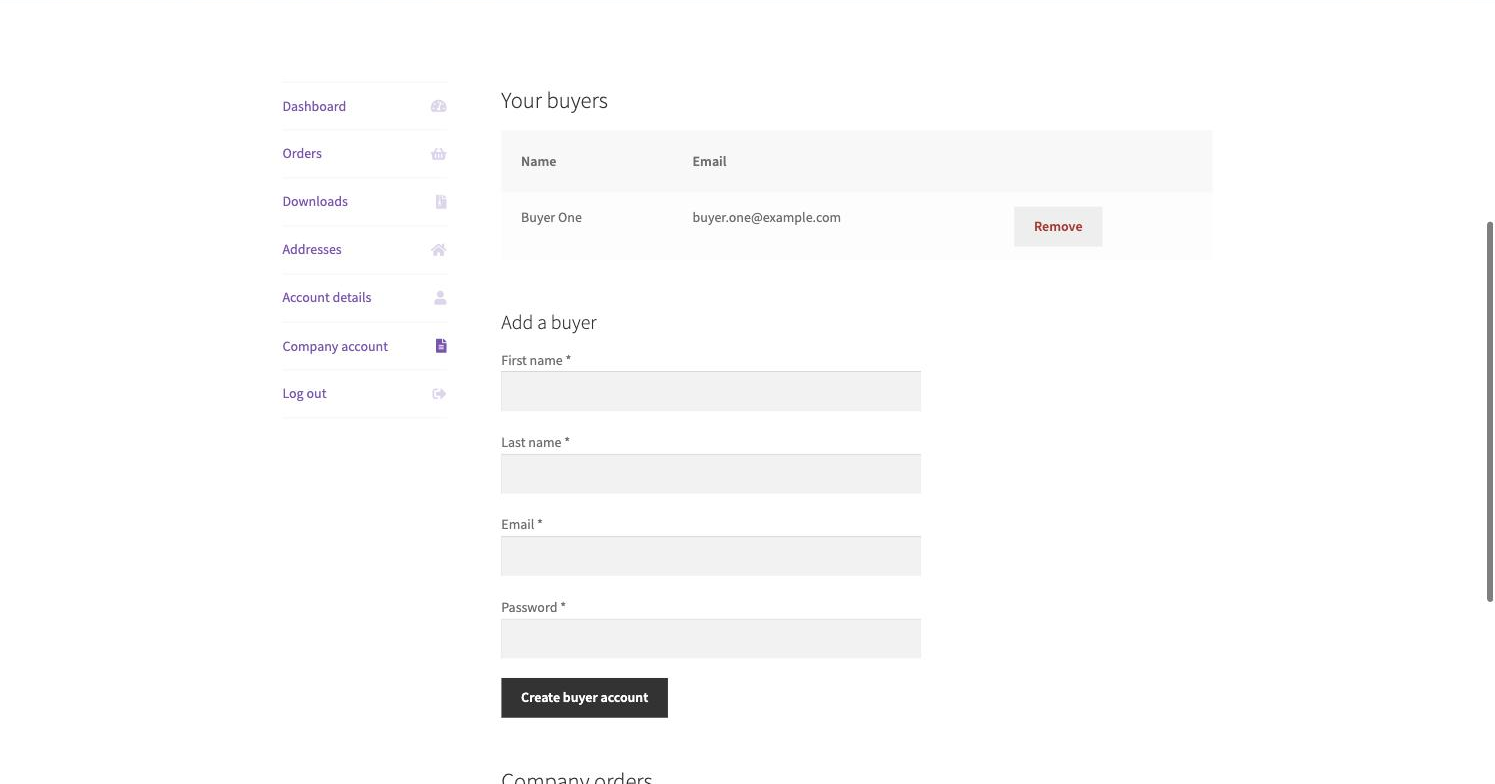
Company Sub-Accounts for WooCommerce lets one customer account act as a company. The company owner (the parent account) creates logins for their colleagues from a Company account page in My Account, and sees their own orders and every buyer’s orders in one list.
Each sub-account is an ordinary WordPress user linked to its parent. Give new buyers the same role as the parent, for example your wholesale role, and the role-based prices and rules from the rest of B2B Managers apply to them too.
Company Sub-Accounts Pro for WooCommerce adds purchasing controls the company owner manages themselves: buyer, approver and viewer permissions, per-order and monthly spending limits, an approval step for larger orders, and department cost centres at checkout.
Where to find it: WooCommerce → Company Sub-Accounts
Requirements
- WordPress 5.6+ and PHP 7.4+
- WooCommerce 4.0+ (the plugin shows an admin notice and does nothing if WooCommerce is not active)
- Compatible with WooCommerce High-Performance Order Storage (HPOS). Pro’s cost-centre field needs the classic checkout; everything else also works with the block-based Cart and Checkout
Installation
- Free: go to Plugins → Add New Plugin, search for “Company Sub-Accounts”, then install and activate it. You can also upload the zip under Plugins → Add New Plugin → Upload Plugin.
- On activation the plugin flushes your rewrite rules once so the Company account page in My Account works.
- Pro: upload the Pro zip under Plugins → Add New Plugin → Upload Plugin and activate it. Pro deactivates the free plugin for you and shows a notice: “The free version was deactivated automatically — every company, buyer and order carried over.” Pro reads the same settings and parent links, so every company and buyer carries over.
- Pro licence: go to WooCommerce → Company Sub-Accounts, open the License tab, paste the key from your order email and click Activate License.
Set up your first company account
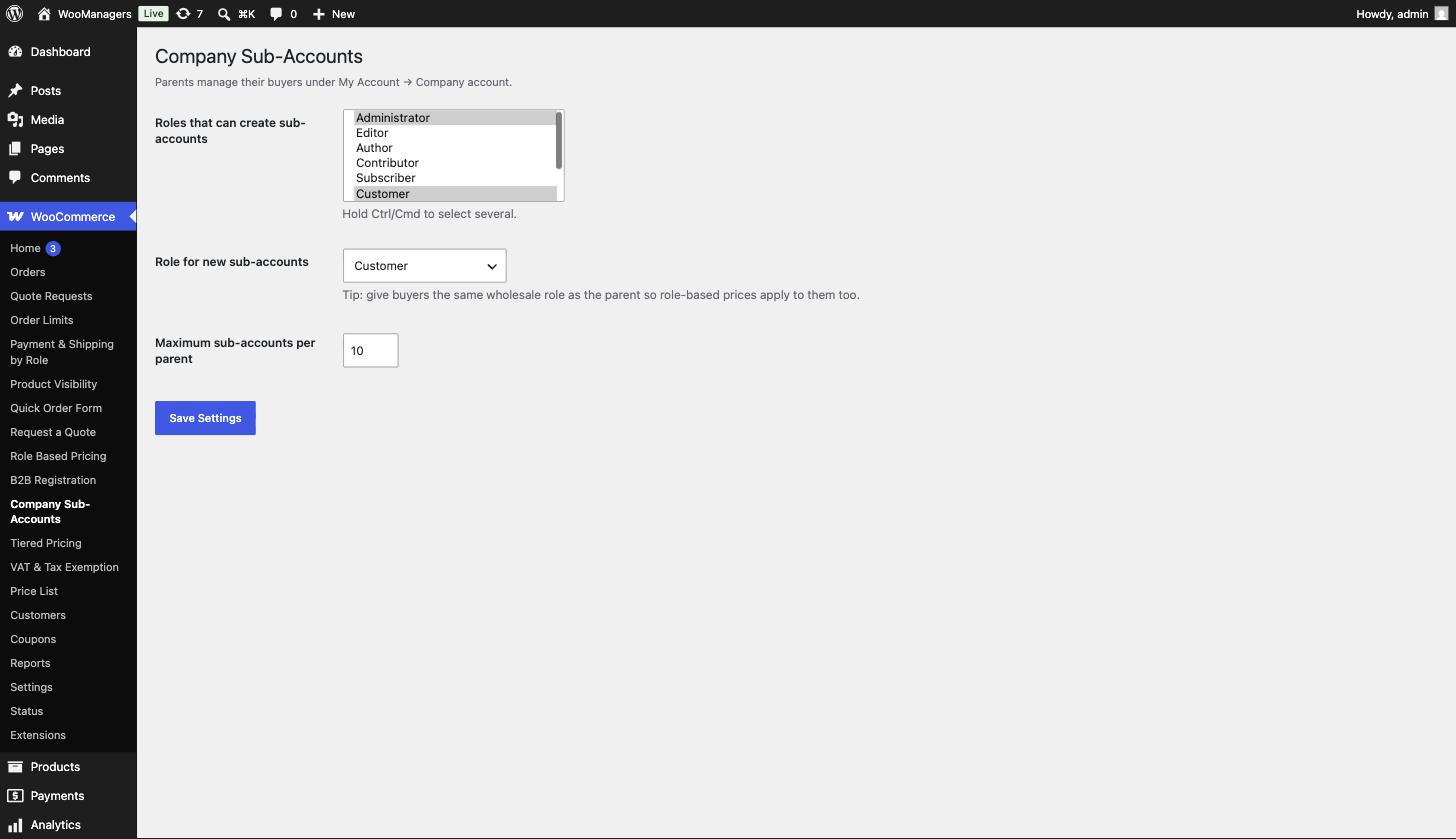
- Go to WooCommerce → Company Sub-Accounts.
- In Roles that can create sub-accounts, select the roles of your company owners (hold Ctrl/Cmd to select several).
- Set Role for new sub-accounts to the role whose prices buyers should get, set Maximum sub-accounts per parent, and click Save Settings.
- Log in to the shop as a customer with one of those roles and open My Account → Company account.
- Under Add a buyer, enter a first name, last name, email and password (at least 8 characters) and click Create buyer account. The buyer is emailed a link to log in.
- Place an order as the buyer. It appears under Company orders on the parent’s Company account page, with the buyer’s name.
Settings reference
| Setting | What it does | Edition |
|---|---|---|
| Roles that can create sub-accounts | Users with any of these roles get the Company account page, unless they are a sub-account themselves. Default: Administrator, Wholesale Customer and Customer. Saving with none selected restores the default. | Both |
| Role for new sub-accounts | The role every new buyer is created with. Administrator is not offered. Default: Customer. | Both |
| Maximum sub-accounts per parent | How many buyers one company can have, from 1 to 100. The Add a buyer form is hidden once the limit is reached. Default: 10. | Both |
| Default spending limits: Per order / Per month | Applied to every buyer who has no limit of their own. Leave empty for no limit. Default: empty. | Pro |
| Default approval threshold | Buyers’ orders at or above this total are held until an approver says yes. Enter 0 to hold every order. Leave empty and orders never need approval. Default: empty. | Pro |
| Cost centres | Departments or cost centres, one per line. When the list has entries, buyers see a Department / cost centre field at checkout. Default: empty. | Pro |
| Buyers must pick one at checkout | Makes the cost centre field required. Default: off. | Pro |
| What this buyer can do | Set by the company owner per buyer: Buyer (can place orders), Approver (can place orders and approve others) or Viewer (can browse but not check out). Default: Buyer. | Pro |
| Most they can spend on one order / in a month | Set by the company owner per buyer. Leave empty to use the company default. | Pro |
| Orders at or above this need your approval | Set by the company owner per buyer. Enter 0 to approve every order they place. Leave empty to use the company default. | Pro |
Parent and buyer accounts
A buyer is linked to its company by a single piece of user meta that stores the parent’s user ID. There are no extra tables, and both the parent and the buyer are normal WordPress accounts.
The Company account tab appears in My Account, just above Log out, for users whose role is in Roles that can create sub-accounts and who are not themselves a sub-account. Buyers don’t see it, except buyers marked as Approver in Pro (see Order approval below).
- New buyers get the email address as their username and the password the parent typed. Their welcome email does not include the password, so the parent needs to share it.
- Remove unlinks the buyer from the company. Their account and order history stay. The parent no longer sees their orders.
- Company orders lists the 50 most recent orders from the parent and all buyers, newest first. Only the parent’s own order numbers link to the order page.
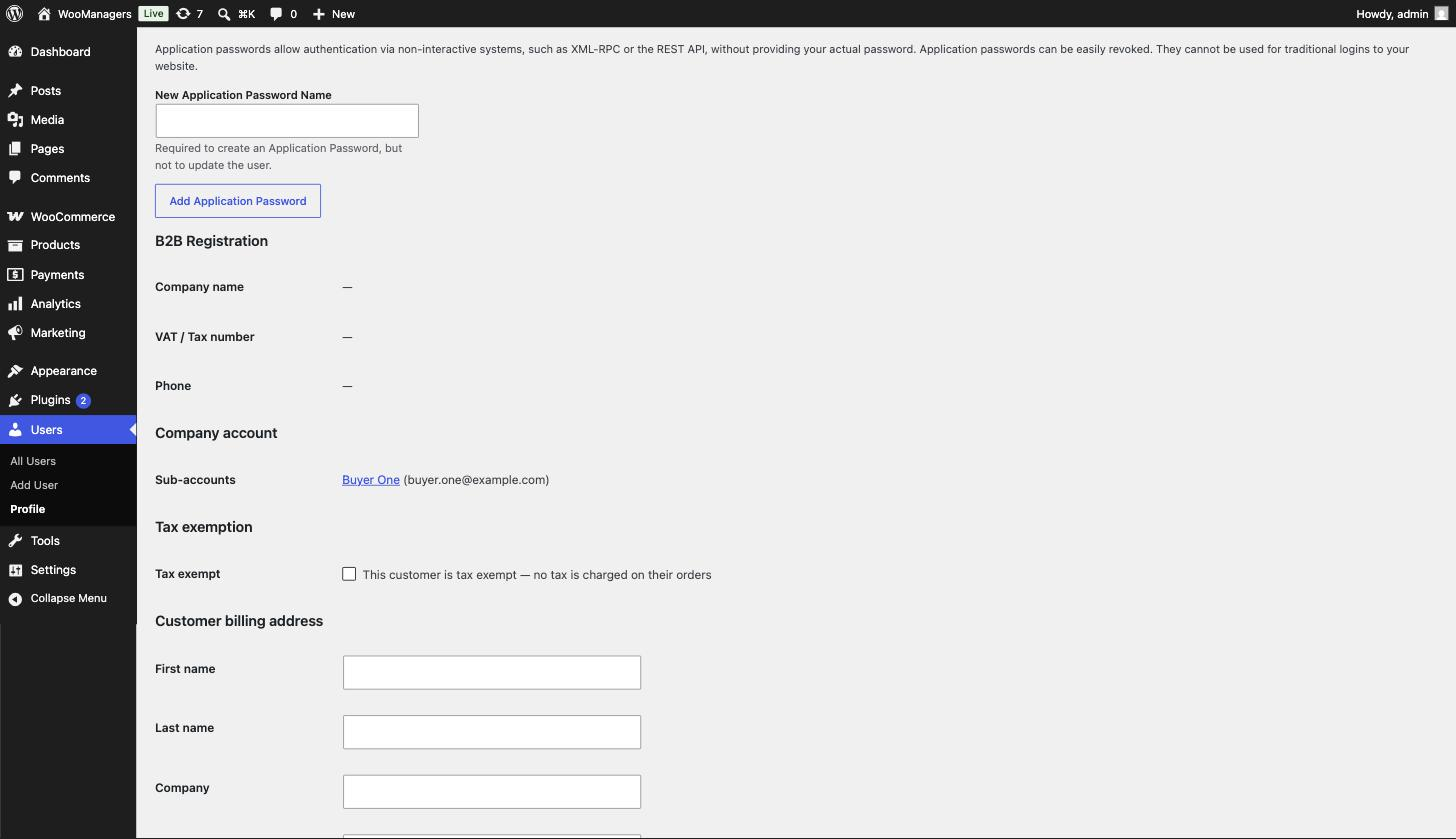
- In wp-admin, a user’s profile shows a Company account section with “Sub-account of” or the list of sub-accounts.
Permissions and spending limits (Pro)
On the Company account page, each buyer has a Settings button where the company owner sets what they can do, their limits and their approval threshold. The buyer table shows each buyer’s permission and limits.
Limits and approval apply only to sub-accounts. The company owner is never limited, and is always treated as an approver. Orders placed by the owner or by a buyer marked as Approver are never held for approval.
- Per order: the cart total can’t be above this amount.
- Per month: counts the buyer’s orders since the 1st of the current month with the status Pending payment, On hold, Processing, Completed or Awaiting approval, less any refunds. Cancelled and failed orders don’t count.
- A limit of 0 is a real limit. It stops the buyer ordering without removing them.
- Limits are checked on the cart and checkout pages. A buyer over a limit sees an error with the figure, and can’t place the order.
- A Viewer sees “Your account can browse the catalogue but cannot place orders.” on the cart and checkout pages.
Order approval (Pro)
When a buyer places an order at or above their approval threshold, the order is moved to the Awaiting approval status as soon as it is created, and the buyer is sent to the order-received page. This works on both the classic and the block checkout. A held order skips payment: the payment gateway does not run and nothing is charged.
The company owner and every buyer marked as Approver receive an email with Approve and Decline links. The company owner also sees a Waiting for your approval table at the top of their Company account page, where Decline asks for an optional reason. Approvers get a Company account tab in My Account that shows only this table, or “Nothing is waiting for your approval.”
- Approve moves the order to Pending payment and emails the buyer a link to pay.
- Decline cancels the order and emails the buyer, including the reason if one was given.
- The emailed links work without logging in. Treat approval emails as private.
Cost centres (Pro)
Add your departments under Cost centres in the plugin settings. Sub-accounts then see a Department / cost centre dropdown after the order notes at checkout. Company owners don’t see it.
The cost centre field is added to the classic checkout (the
Only values from your list are saved. The choice is stored on the order and shown as Cost centre under the billing address on the admin order screen.
Without an active licence
Pro falls back to the free behaviour. Every sub-account can order again, limits and cost centres stop applying, and the Pro settings are hidden but kept.
Orders still in Awaiting approval are moved to Pending payment, with an order note, the next time someone loads a wp-admin page. Activate a key and everything resumes.
Free and Pro compared
| Feature | Free | Pro |
|---|---|---|
| Company account page in My Account | Yes | Yes |
| Create and remove buyers | Yes | Yes |
| Combined company order list | Yes | Yes |
| Sub-accounts per company | Up to 100 | Up to 100 |
| Buyer, approver and viewer permissions | No | Yes |
| Per-order spending limit | No | Yes |
| Monthly spending limit | No | Yes |
| Order approval threshold with emailed approve and decline links | No | Yes |
| Company-wide defaults with per-buyer overrides | No | Yes |
| Cost centres at checkout | No | Yes |
Troubleshooting
| What you see | What to do |
|---|---|
| The Company account tab is missing from My Account | Check the customer’s role is selected in Roles that can create sub-accounts. Sub-accounts don’t get the tab, except buyers marked as Approver in Pro, who see only the orders waiting for their approval. |
| My Account → Company account shows a 404 page | Go to Settings → Permalinks and click Save Changes to rebuild the rewrite rules. |
| The Add a buyer form has disappeared | The company has reached Maximum sub-accounts per parent. Raise the limit or remove a buyer. |
| “An account with this email already exists.” | Buyers are always created as new accounts. Use a different email address for the buyer. |
| Buyers don’t get the parent’s trade prices | Set Role for new sub-accounts to the role your prices target. Buyers created earlier keep the role they were given, so change it on their user profile. |
| A buyer is told they are over their limit (Pro) | Raise the buyer’s limit from their Settings on the Company account page, or the company default in the plugin settings. The monthly figure includes orders that are still pending or on hold. |
| “That approval link is not valid.” | The link does not match the order. The company owner or an approver can log in and use the Waiting for your approval table on the Company account page instead. “That order has already been dealt with.” means someone else has already decided it. |
Uninstalling
Deactivating keeps all data, including the parent links. The Company account page disappears until you reactivate. Deactivating Pro also clears its scheduled licence check.
Deleting the free plugin removes the wmsub_settings option and every parent link (_wmsub_parent_id), so all buyers become ordinary, separate customers. Their accounts and orders are kept. While Pro or the B2B Managers Suite is installed (active or not), it removes nothing, because they use the same settings and links.
Deleting Pro always removes wmsub_pro_license, wmsub_pro_entitlement and its scheduled licence check. It removes the settings and parent links only when neither the free plugin nor the suite is installed. Deleting does not release the licence on the server, so click Deactivate this site on the License tab first if you want to use the key on another site.
Before you deactivate or delete Pro, approve or decline any orders that are still Awaiting approval. That status belongs to the plugin and is not available once it is gone.
Questions people ask
Can buyers see each other’s orders?
No. Buyers only see their own orders in My Account. The company owner sees everyone’s orders under Company orders.
Can I add an existing customer as a sub-account?
No. Sub-accounts are created as new accounts from the Company account page.
Is the buyer’s password emailed to them?
No. The email gives their login email and a link to My Account, and tells them to ask for the password that was set for them.
Can a sub-account create its own sub-accounts?
No. Only accounts that are not linked to a parent can manage buyers.
Is the monthly limit a rolling 30 days? (Pro)
No. It counts orders placed since the 1st of the current month.
Do limits apply to the company owner? (Pro)
No. Limits and approval apply only to sub-accounts.
Is a held order charged? (Pro)
No. An order waiting for approval skips payment on both the classic and the block checkout. Once it is approved, it moves to Pending payment and the buyer gets a link to pay.
What happens if my Pro licence expires?
Sub-accounts keep working as in the free plugin. Limits, permissions, approval and cost centres stop applying, and orders awaiting approval are released for payment. Your Pro settings are kept.