
What it does
Min Max Order Rules for WooCommerce makes sure every order meets your quantity and value rules before it reaches checkout. You can set a minimum quantity, a maximum quantity and a quantity step (sell in packs of six) on each product, with storewide defaults for everything else, plus a minimum order total.
The limits are applied to the quantity box on the product page, checked when a product is added to the cart, and checked again on the cart and checkout pages. Clear error notices name the product and the figure, and checkout is blocked until the cart is fixed.
Min Max Order Rules Pro for WooCommerce replaces per-product typing with rules. A rule can target roles (guests included), categories or product IDs, with an exclusion list and start and end dates. Pro also adds order-wide limits: minimum and maximum order value and item count per role, and quantity caps per category across the whole basket.
Where to find it: WooCommerce → Order Limits (storewide settings) and Product data → Inventory on each product
Requirements
- WordPress 5.6+ and PHP 7.4+ (Free and Pro)
- WooCommerce 4.0+, installed and active (Free and Pro)
- Compatible with WooCommerce High-Performance Order Storage (HPOS) and the block-based Cart and Checkout
Installation
- Free: go to Plugins → Add New, search for “Min Max Order Rules for WooCommerce” by B2B Managers, then install and activate it. You can also upload the zip under Plugins → Add New → Upload Plugin.
- Pro: Pro is a full replacement for the free plugin and reads the same settings and the same per-product limits. When you activate it, Pro deactivates the free plugin for you, so limits are not checked twice, and shows a notice: “The free version was deactivated automatically — every limit you had set carried over.”
- Upload the Pro zip under Plugins → Add New → Upload Plugin and activate it.
- Go to WooCommerce → Order Limits, open the License tab, paste the licence key from your order email (it looks like
WM-XXXX-XXXX-XXXX-XXXX) and click Activate License.
Sell a product in packs of six
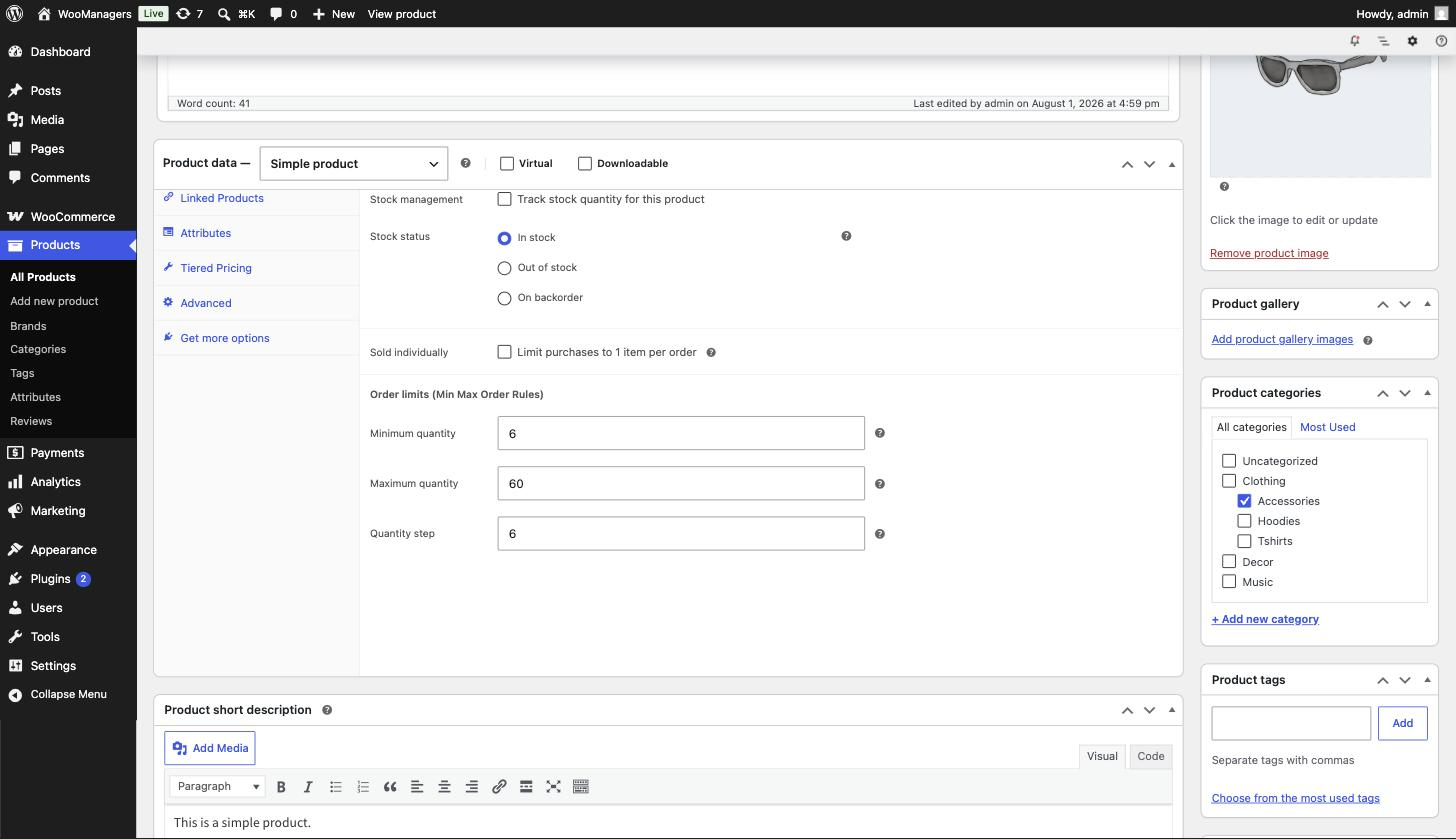
- Edit the product and open Product data → Inventory. Find the Order limits (Min Max Order Rules) group.
- Set Minimum quantity to 6 and Quantity step to 6. Add a Maximum quantity if you want a cap, then click Update.
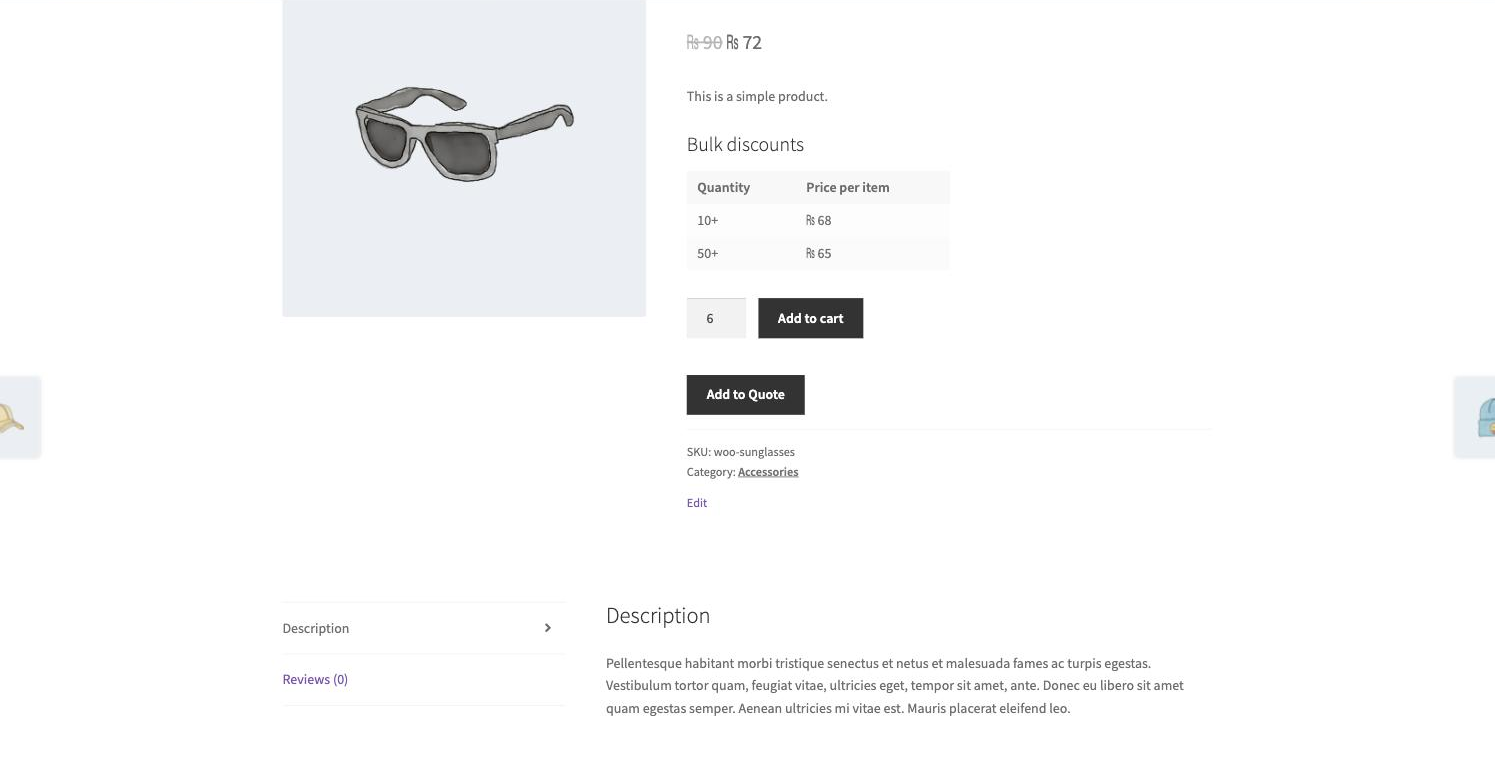
- Open the product on your store. The quantity box now starts at 6 and moves in steps of 6.
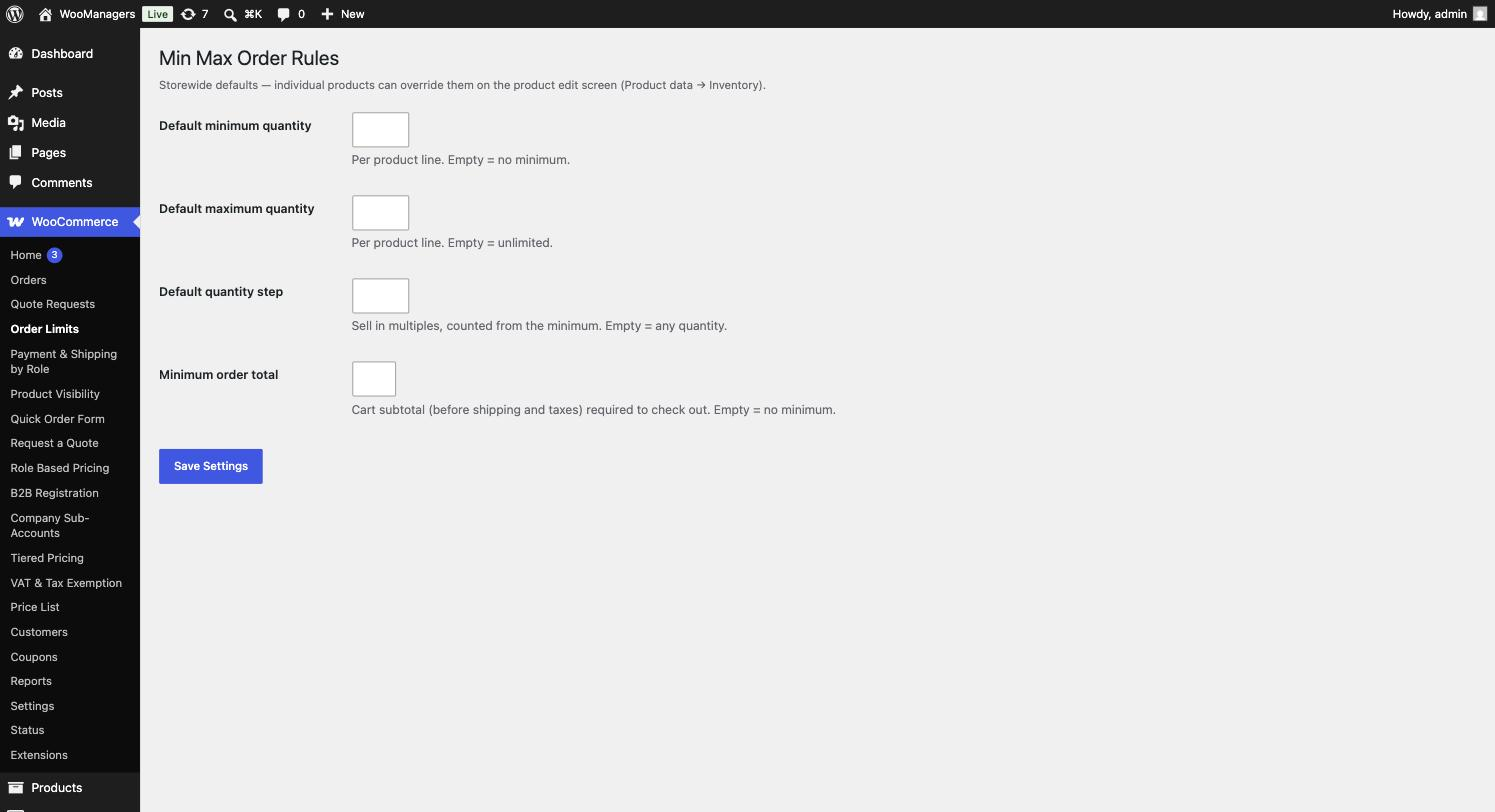
- To set limits for every product at once, go to WooCommerce → Order Limits (the Basics tab in Pro), fill in the defaults and click Save Settings. A value typed on a product always wins over these defaults.
- To require a minimum spend, enter an amount in Minimum order total on the same screen and save.
- Test it: add a quantity that breaks a rule to the cart. You see a notice such as “The minimum order quantity for “Sunglasses” is 6.” and checkout stays blocked until the cart is fixed.
Settings reference
| Setting | What it does | Edition |
|---|---|---|
| Minimum quantity (product) | Minimum per cart line for this product. Leave empty to use the storewide default. | Both |
| Maximum quantity (product) | Maximum per cart line. Leave empty for the storewide default; 0 for unlimited. | Both |
| Quantity step (product) | Sell in multiples, for example 6 for packs of six. Leave empty for the storewide default. | Both |
| Default minimum quantity | Per product line. Empty = no minimum. Default: empty. | Both |
| Default maximum quantity | Per product line. Empty = unlimited. Default: empty. | Both |
| Default quantity step | Sell in multiples, counted from the minimum. Empty = any quantity. Default: empty. | Both |
| Minimum order total | Cart subtotal (before shipping and taxes) required to check out. Empty = no minimum. Default: empty. | Both |
| Quantity rules tab | One row per rule: Name with an On box, Who (Guests and roles; none = everyone), What it covers (Everything, These categories or These product IDs, plus Exclude product IDs), Min / Max / Step and Dates. Click Save Rules. | Pro |
| Order minimums by role | For Guests and each role: Min total, Max total, Min items, Max items. Leave a row empty for no limit. | Pro |
| How much of a category may be ordered | For each product category: Min items and Max items, counted across the whole basket. Click Save Order Rules. | Pro |
How a product’s limits are worked out
Minimum, maximum and step are worked out separately. For each one the plugin takes the first value that is set, in this order:
Limits are read from the parent product, so every variation of a variable product shares the parent’s limits. The minimum is never lower than 1. A maximum of 0, or no maximum at all, means unlimited. Saving 0 as a storewide default clears that default.
- The value typed on the product in Product data → Inventory.
- Pro: the first matching rule on the Quantity rules tab. A rule only fills the values it sets, so a rule that only sets a step leaves the minimum alone.
- The storewide default on WooCommerce → Order Limits.
How steps work
Steps count from the minimum. Minimum 6 with step 6 allows 6, 12, 18 and so on. Minimum 5 with step 10 allows 5, 15, 25. A quantity off the step shows “”” must be ordered in multiples of [step] (starting from [minimum]).”
Where the limits are enforced
- Quantity boxes: on product and cart pages the box gets the minimum, step and maximum. On the product page it starts at the minimum. For variations the minimum and maximum are passed to the variation form.
- Add to cart: the new line total is checked, so adding 2 to a cart that already holds 4 of the same item checks 6.
- Cart and checkout: every line, and the minimum order total, is checked again. Each problem shows as an error notice and checkout is blocked.
- Shop and category pages (Pro): the add-to-cart button on archive pages adds the product’s minimum quantity instead of 1, so it is not refused.
Pro: quantity rules
Rules are checked from the top down and the first one that fits a product and customer wins. Use the ↑ and ↓ links to reorder rules and × to delete one. The blank row at the bottom adds a new rule, and a rule that sets no min, max or step is discarded when you save.
Who matches the customer’s roles; pick Guests for logged-out visitors, or leave it empty for everyone. These categories also covers products filed in child categories, so a rule on Clothing reaches Clothing → Shirts. Exclude product IDs are checked first and win outright. Type product IDs as a comma-separated list.
The two Dates fields are a start and an end date. Both are inclusive and are compared with today’s date in UTC. Leave them empty for a rule that is always on.
Pro: order rules
Order rules look at the basket as a whole. Min total and Max total compare the cart subtotal; Min items and Max items count the total quantity across all lines. A customer with more than one role gets the most permissive combination: the lowest minimum and the highest maximum.
Category limits count every item filed in the category or its child categories. A category minimum only applies once something from that category is in the basket, so “at least 12 from Clothing” never stops someone buying a single mug.
Problems are shown as error notices on the cart page and the checkout page, and checkout is refused until they are fixed. The storewide Minimum order total on the Basics tab still applies alongside these rules.
Free and Pro compared
| Feature | Free | Pro |
|---|---|---|
| Minimum, maximum and step per product | Yes | Yes |
| Storewide default limits | Yes | Yes |
| Storewide minimum order total | Yes | Yes |
| Checks on add to cart, cart and checkout | Yes | Yes |
| Shop-page button adds the minimum quantity | No | Yes |
| Quantity rules by role, category or product | No | Yes |
| Rule exclusions and start/end dates | No | Yes |
| Minimum and maximum order value per role | No | Yes |
| Minimum and maximum items per role | No | Yes |
| Category quantity limits across the basket | No | Yes |
Troubleshooting
| What you see | What to do |
|---|---|
| Clicking Add to cart on the shop page shows a minimum quantity error. | The shop-page button adds one item. In the free plugin, customers should add the product from its product page, where the quantity box starts at the minimum. Pro makes the shop-page button add the minimum. |
| Limits do not show on a variation. | Limits are set on the parent product and shared by all its variations. Edit the variable product and set them in Product data → Inventory. |
| A Pro rule is ignored for a product. | A value typed on the product beats every rule. Clear that field on the product, check the rule’s On box, its dates and roles, and move it above broader rules. |
| The Quantity rules or Order rules tab says “Pro feature — license required”. | Activate your key on the License tab. Without an active licence your rules are kept but not applied, and saving them is refused. Per-product limits and storewide defaults keep working. |
| A customer with two roles gets a lower minimum than expected (Pro). | This is by design: a customer with several roles gets the most permissive order limits of those roles. |
| A category minimum does not stop a small order (Pro). | Category minimums only apply once an item from that category is in the basket. Use a per-role Min items or Min total for an order-wide minimum. |
| The minimum order total seems to ignore shipping. | It compares the cart subtotal before shipping and taxes, as the setting describes. |
| Limits are checked twice, or the free plugin is active again next to Pro. | You activated the free plugin again while Pro is active. Deactivate the free plugin again; Pro reads the same settings and product values. |
Uninstalling
Deactivating either plugin removes nothing. Deactivating Pro also stops its scheduled licence check.
Deleting the free plugin removes the storewide settings and the Minimum quantity, Maximum quantity and Quantity step values from every product. While Pro or the B2B Managers Suite is installed (active or not), it removes nothing, because they use the same settings and product values.
Deleting Pro always removes your licence data and its scheduled licence check. It keeps your quantity rules and order rules while the suite is installed, and the shared settings and product values while the free plugin or the suite is installed. With neither installed, it removes them all.
Questions people ask
Which wins, a rule or the limit on the product?
The product. A value typed on the product edit screen is never overridden. Rules fill in whatever you have not set by hand, and the storewide defaults fill in the rest.
Do limits apply per variation or per product?
Limits are set on the product and checked per cart line. Two different variations are two lines, and each is checked against the product’s limits.
What does the customer see when the cart breaks a rule?
An error notice on the cart and checkout pages, for example “The minimum order amount is [amount] — your current subtotal is [amount].” Checkout is blocked until the cart is fixed.
Can I have a minimum order value for wholesale only? (Pro)
Yes. On the Order rules tab, enter a Min total for the wholesale role and leave the other roles empty.
Can a rule run for a limited time? (Pro)
Yes. Fill in the two Dates fields on the rule. Both dates are included, and the rule switches itself on and off.
What happens if my licence expires?
Per-product limits, storewide defaults, steps and the minimum order total keep working. Quantity rules and order rules stop applying, and they are kept so they resume when a key is activated.
Will my limits carry over when I upgrade to Pro?
Yes. Pro reads the same settings and per-product values as the free plugin. Activate Pro and it deactivates the free plugin for you.