
What it does
VAT Number & Tax Exemption adds a VAT number field to your checkout and lets you mark trusted business customers as tax exempt. The field works on the classic checkout and the block checkout, checks the number’s format for each EU country, the UK and Switzerland, and saves the number on the order, where it shows on the order screen and in emails.
Tax exemption in the free plugin is manual: tick Tax exempt on a customer’s user profile and their carts and orders are calculated without tax. The plugin makes no outside requests.
VAT & Tax Exemption Pro for WooCommerce checks each number against the EU’s VIES service and zero-rates cross-border business sales automatically. It never zero-rates a sale in your own country unless you ask it to, lets you decide what happens when VIES is down, adds reverse-charge wording to zero-rated orders, stores the VIES result on the order as evidence, and lists orders that need a second look.
Where to find it: WooCommerce → VAT & Tax Exemption
Requirements
- WordPress 5.6+ and PHP 7.4+
- WooCommerce 6.0+
- Compatible with WooCommerce High-Performance Order Storage (HPOS) and the block-based Cart and Checkout
- For the field on the block checkout: WooCommerce’s Additional Checkout Fields API (WooCommerce 8.9+). On older versions the field shows on the classic checkout only.
- Pro: an active licence key, and outgoing HTTPS requests from your server to the EU VIES service
Installation
- Free: go to Plugins → Add New Plugin, install the plugin (or click Upload Plugin and choose the zip), then activate it. It appears in your plugin list as “B2BM VAT Number & Tax Exemption for WooCommerce”.
- The VAT number field is switched on straight away. Open WooCommerce → VAT & Tax Exemption to change the label or make it required.
- Pro: go to Plugins → Add New Plugin → Upload Plugin, choose the Pro zip from your order and activate it. It appears in your plugin list as “VAT & Tax Exemption Pro for WooCommerce”.
- Go to WooCommerce → VAT & Tax Exemption, open the License tab, paste the key from your order email (it looks like
WM-XXXX-XXXX-XXXX-XXXX) and click Activate License. - Pro reads the same settings, VAT order data and tax-exempt flags as the free plugin, so nothing has to be set up again. Pro deactivates the free plugin for you, so the field is registered only once, and shows a notice: “The free version was deactivated automatically — your settings and every existing exemption carried over.”
Collect VAT numbers and exempt a customer
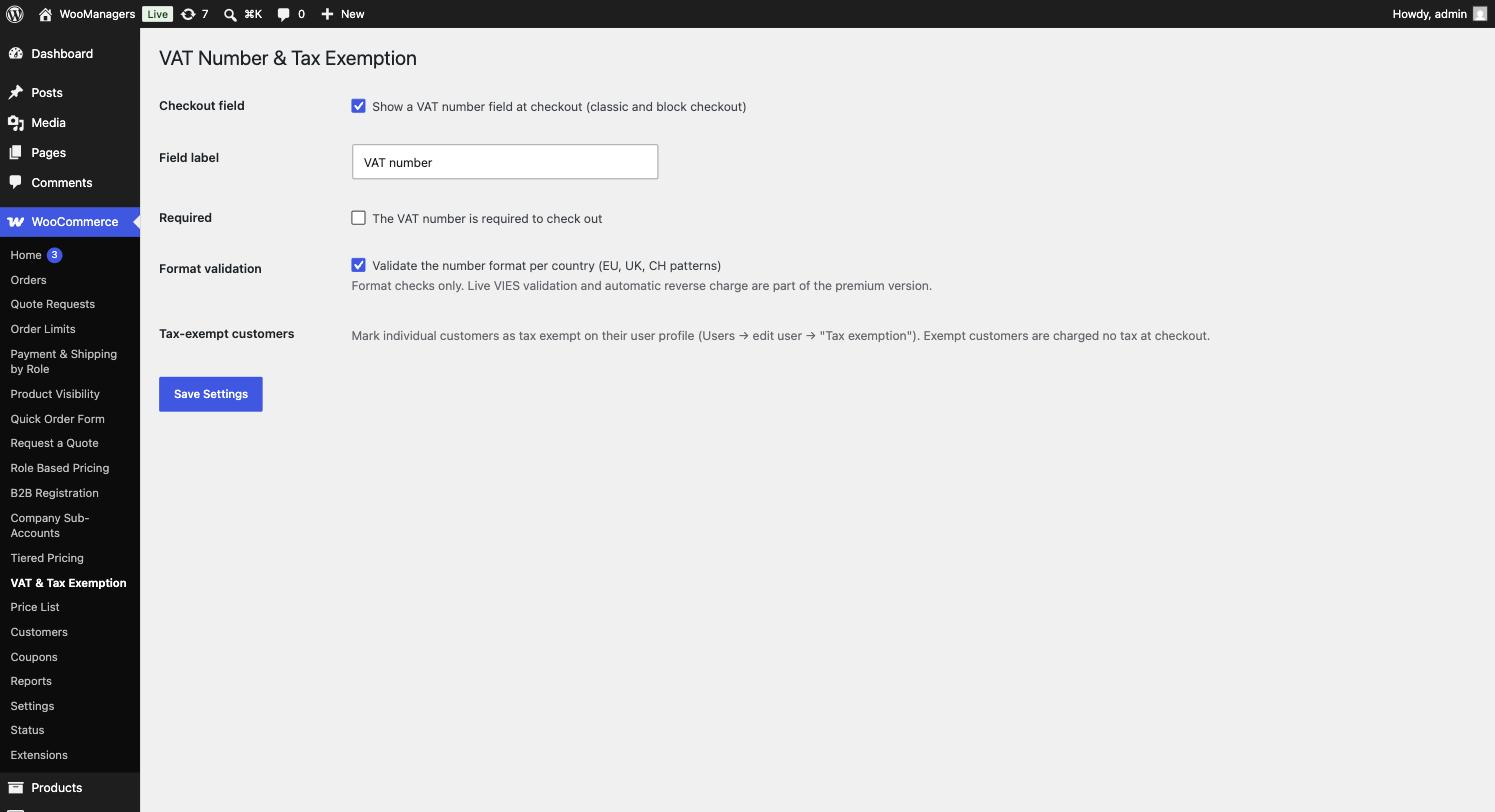
- Go to WooCommerce → VAT & Tax Exemption.
- Check that Show a VAT number field at checkout (classic and block checkout) is ticked. Change Field label if you want different wording.
- Tick The VAT number is required to check out if every order needs one, and leave Validate the number format per country (EU, UK, CH patterns) on. Click Save Settings.
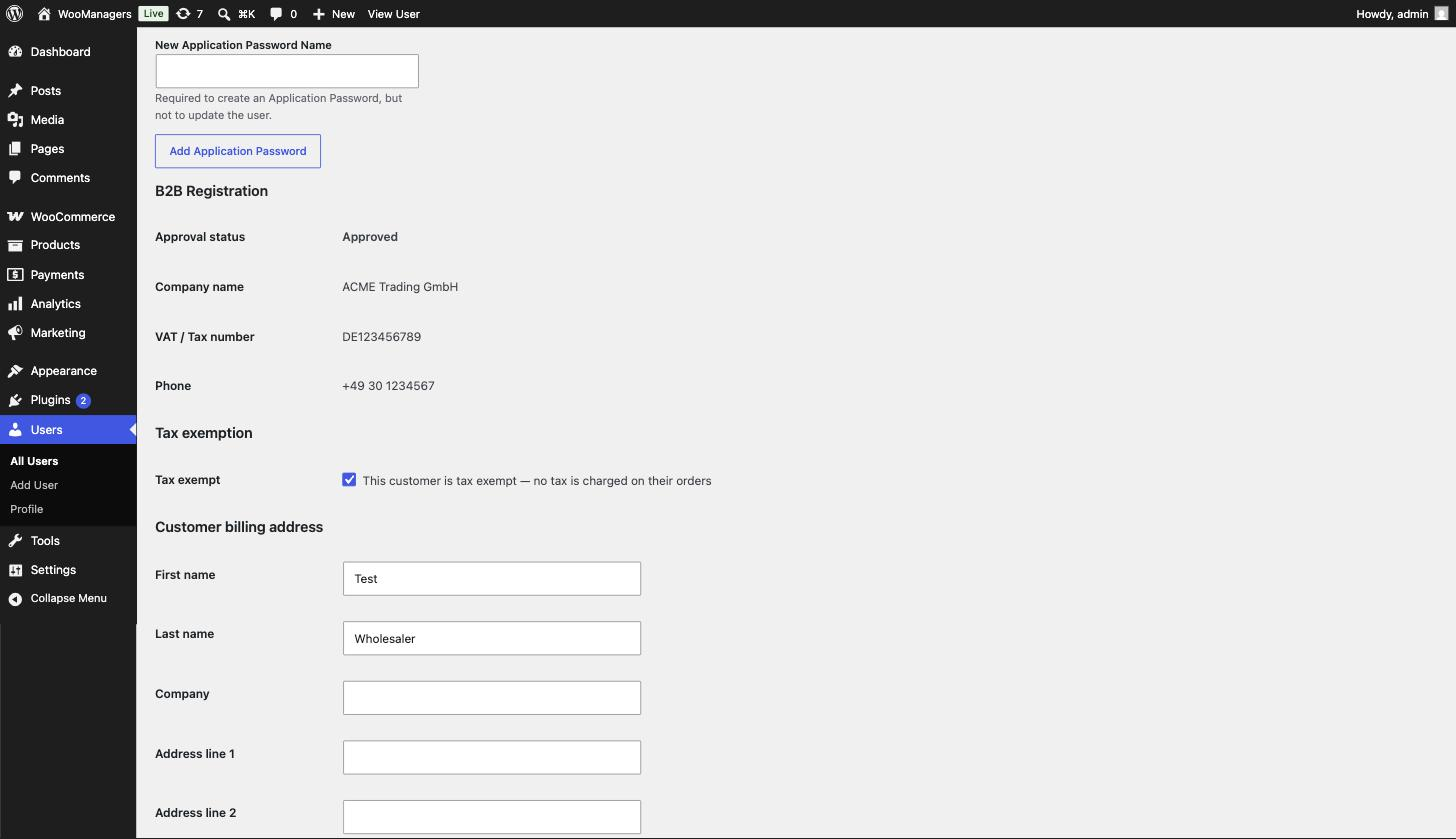
- To exempt a customer from tax, go to Users, edit the customer, and in the Tax exemption section tick Tax exempt. Click Update User.
- Sign in as that customer and add a product to the cart: no tax is charged.
- With Pro, open the Validation & exemption tab, check that the country shown as your shop’s is right, and review the VIES options.
Settings reference
| Setting | What it does | Edition |
|---|---|---|
| Checkout field | “Show a VAT number field at checkout (classic and block checkout)”. Default: on. | Both |
| Field label | The label of the VAT number field, also used on the order screen and in emails. Default: “VAT number”. | Both |
| Required | “The VAT number is required to check out”. Default: off. | Both |
| Format validation | “Validate the number format per country (EU, UK, CH patterns)”. Default: on. | Both |
| Tax exempt (user profile) | “This customer is tax exempt — no tax is charged on their orders”. Set per customer under Users → edit user → Tax exemption. Visible to users who can manage WooCommerce. | Both |
| Check with VIES | “Verify VAT numbers against the EU service”. Default: on. | Pro |
| Zero-rate automatically | “Remove VAT when a valid cross-border VAT number is given”. Default: on. | Pro |
| Also zero-rate customers in my own country | Zero-rate valid numbers from your shop’s own country too. Default: off. | Pro |
| A number VIES rejects | “Stop the order until the customer corrects it”. Also applies to a number that fails the format check. Default: on. | Pro |
| If VIES is down | “Take the order, charge tax, flag it for review” (default), “Zero-rate it anyway and flag it”, or “Ask the customer to try again later”. | Pro |
| Only these roles | Only customers with these roles can be zero-rated. Select none to allow any customer with a valid number (default). When roles are selected, guests are never zero-rated. | Pro |
| Only these countries | EU member state codes (and XI for Northern Ireland) whose numbers may be zero-rated. Select none for every member state except your own (default). | Pro |
| Reverse charge wording | Added to zero-rated orders and shown to the customer. Empty uses the standard Article 196 wording (default). | Pro |
| Evidence | “Show the verification record on the order screen”. Default: on. | Pro |
| License key | On the License tab: Activate License and Deactivate this site. | Pro |
The VAT number field and format check
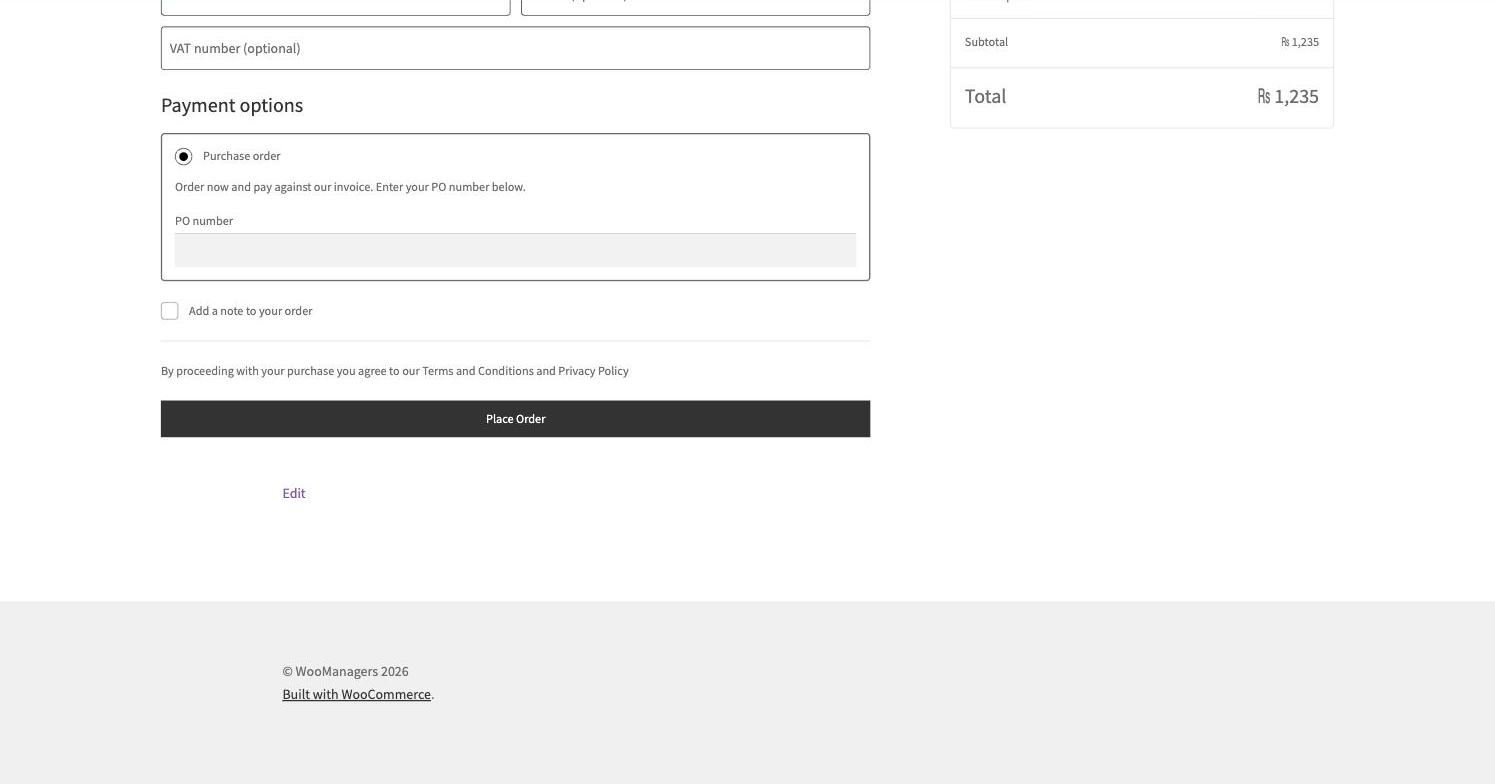
On the classic checkout the field sits with the billing fields, straight after Company. On the block checkout it is added to the address section through WooCommerce’s Additional Checkout Fields API. The number is saved on the order and shown, with your field label, under the billing address on the admin order screen and with the customer details in order emails.
Before checking, the number is put in capitals and spaces, dots and dashes are removed. The first two letters choose the country pattern: every EU member state (use EL for Greece), GB and CH (Swiss numbers start CHE). Any other prefix gets a general check: two letters followed by 2 to 13 letters or digits. An empty field passes unless the field is required.
Manual tax exemption
A customer with Tax exempt ticked is treated as VAT exempt by WooCommerce whenever they are signed in, so their cart, checkout and orders carry no tax. Their orders show “✓ Tax-exempt customer” on the admin order screen. The flag applies to signed-in customers only.
In Pro, a customer you exempted by hand stays exempt whatever the automatic rules say, and their orders are treated as zero-rated, so they also receive the reverse-charge note.
How Pro decides to zero-rate a sale
With Zero-rate automatically on, Pro checks each VAT number in this order and stops at the first answer:
- The customer’s role must be in Only these roles, if you selected any.
- The number must come from an EU member state or Northern Ireland (
XI), not your own country (unless Also zero-rate customers in my own country is on), and from one of Only these countries if you selected any. - The number’s country must match the billing country. Greece is handled as
EL, andXInumbers are accepted on GB, XI or IE billing addresses. GB numbers are never zero-rated, because the UK is outside VIES. - The number must pass the format check.
- If Check with VIES is on, VIES must confirm it. If it is off, a well-formed number is zero-rated on format alone.
VIES results, evidence and the Needs review tab
VIES answers are cached: a confirmed number for 7 days, a rejected one for 6 hours. When VIES cannot be reached, nothing is cached and your If VIES is down choice applies. “Zero-rate it anyway” zero-rates the sale; “Ask the customer to try again later” stops the order.
Each order stores the VAT number, the VIES result, when it was checked, the trader name and address VIES returned and the consultation number. With Evidence on, these show in a VAT verification box on the order screen. A zero-rated order gets the reverse-charge wording as an order note, below the order details the customer sees, and a VAT number: line in its totals.
When a number could not be confirmed or was rejected and tax was charged, the order is flagged and listed on the Needs review tab (the latest 50). Click Check again to ask VIES afresh. If the number is now confirmed, the flag is cleared and the note “VAT number confirmed on re-check. Tax charged on this order can now be refunded.” is added; refunding is up to you.
Without an active licence (Pro)
The VAT field, the format check and every manual exemption keep working as in the free plugin. Automatic zero-rating stops and no VIES requests are made, so tax is charged. The Validation & exemption and Needs review tabs show “Pro feature — license required”, your settings and stored evidence are kept, and saving the Pro settings is refused until a licence is active.
The licence is checked with the B2B Managers licence server about twice a day. If the server cannot be reached, the last answer is used for up to 14 days. Updates for Pro arrive through the normal WordPress updates screen while the licence is active.
Free and Pro compared
| Feature | Free | Pro |
|---|---|---|
| VAT number field on classic and block checkout | Yes | Yes |
| Format check for EU, UK and Swiss numbers | Yes | Yes |
| VAT number on the order screen and in emails | Yes | Yes |
| Manual tax exemption per customer | Yes | Yes |
| Live EU VIES check with caching | No | Yes |
| Automatic cross-border zero-rating | No | Yes |
| Limit zero-rating to roles or countries | No | Yes |
| Choice of what happens when VIES is down | No | Yes |
| Reverse-charge wording on zero-rated orders | No | Yes |
| VIES evidence stored on the order | No | Yes |
| Needs review list with re-check | No | Yes |
| Licence key and updates from b2bmanagers.com | No | Yes |
Troubleshooting
| What you see | What to do |
|---|---|
| The VAT number field does not appear. | Tick Show a VAT number field at checkout and save. On the block checkout the field needs WooCommerce 8.9 or later. |
| Checkout says “The VAT number format is not valid for XX. Please check it and try again.” | The number does not match that country’s pattern. Check it starts with the right country code (for example EL, not GR, for Greece). You can switch Format validation off. |
| Checkout says “The VAT number does not look valid. Use the format CC123456789 (country code + number).” | The number has an unknown prefix and failed the general check. Ask the customer to start with the two-letter country code. |
| A tax-exempt customer is still charged tax. | The manual flag only applies while the customer is signed in. Check that Tax exempt is ticked on the right user profile. |
| Pro: a customer with a valid number is still charged VAT. | Most often they are in your own country, which is never zero-rated unless Also zero-rate customers in my own country is on. Also check that their billing country matches the number’s country, and Only these roles and Only these countries. |
| Pro: orders keep appearing on the Needs review tab. | VIES or the member state’s service did not answer, or rejected the number. Use Check again later. Your server must be able to make outgoing HTTPS requests. |
| Pro: the Validation & exemption tab shows “Pro feature — license required”. | Enter your key on the License tab. Your saved values are kept meanwhile. |
| Pro: the free plugin is active again next to Pro on the Plugins screen. | You activated it again while Pro is active, so the field is registered twice. Deactivate the free plugin again; Pro already uses its settings. |
Uninstalling
Deactivating either plugin removes the field and the exemptions from checkout and keeps your settings. Deactivating Pro also clears its scheduled licence check.
Deleting the free plugin deletes its settings and removes the Tax exempt flag from every customer. VAT numbers stored on orders and customer profiles are kept. While Pro or the B2B Managers Suite is installed (active or not), it deletes nothing, because they use the same settings and flags.
Deleting Pro always deletes the stored licence key and licence status and its scheduled licence check. It keeps the Pro settings and the cached VIES answers while the suite is installed, and the field settings while the free plugin or the suite is installed. With neither installed, it deletes them all. Tax-exempt flags, VAT numbers and the VIES evidence stored on orders are kept. Deleting does not release the licence on the server, so click Deactivate this site on the License tab first if you want to use the key elsewhere.
Questions people ask
Does the free plugin check numbers against VIES?
No. The free plugin checks the format for each country. Live VIES checks and automatic zero-rating are in Pro.
How do I make a customer tax exempt?
Edit their user profile and tick Tax exempt in the Tax exemption section. From then on their carts and orders are calculated without tax while they are signed in.
Does the field show on the block checkout?
Yes, through WooCommerce’s Additional Checkout Fields API. On the classic checkout it is a billing field.
Why is a customer with a valid number still charged VAT?
With Pro, sales within your own country carry VAT. Only sales to businesses in other member states are zero-rated, unless you tick Also zero-rate customers in my own country.
What is the consultation number for?
It is the reference VIES issues for a check. Pro stores it on the order as proof that you checked the number, and when.
Does Pro handle Northern Ireland and Greece?
Yes. XI numbers are checked with VIES and accepted on GB, XI or IE billing addresses. Greek numbers use the EL prefix, and a GR billing country is matched to it.
What happens if my Pro licence expires?
The VAT field, format check and manual exemptions keep working. Automatic zero-rating and VIES checks stop, so tax is charged. Your settings and stored evidence are kept.