
What it does
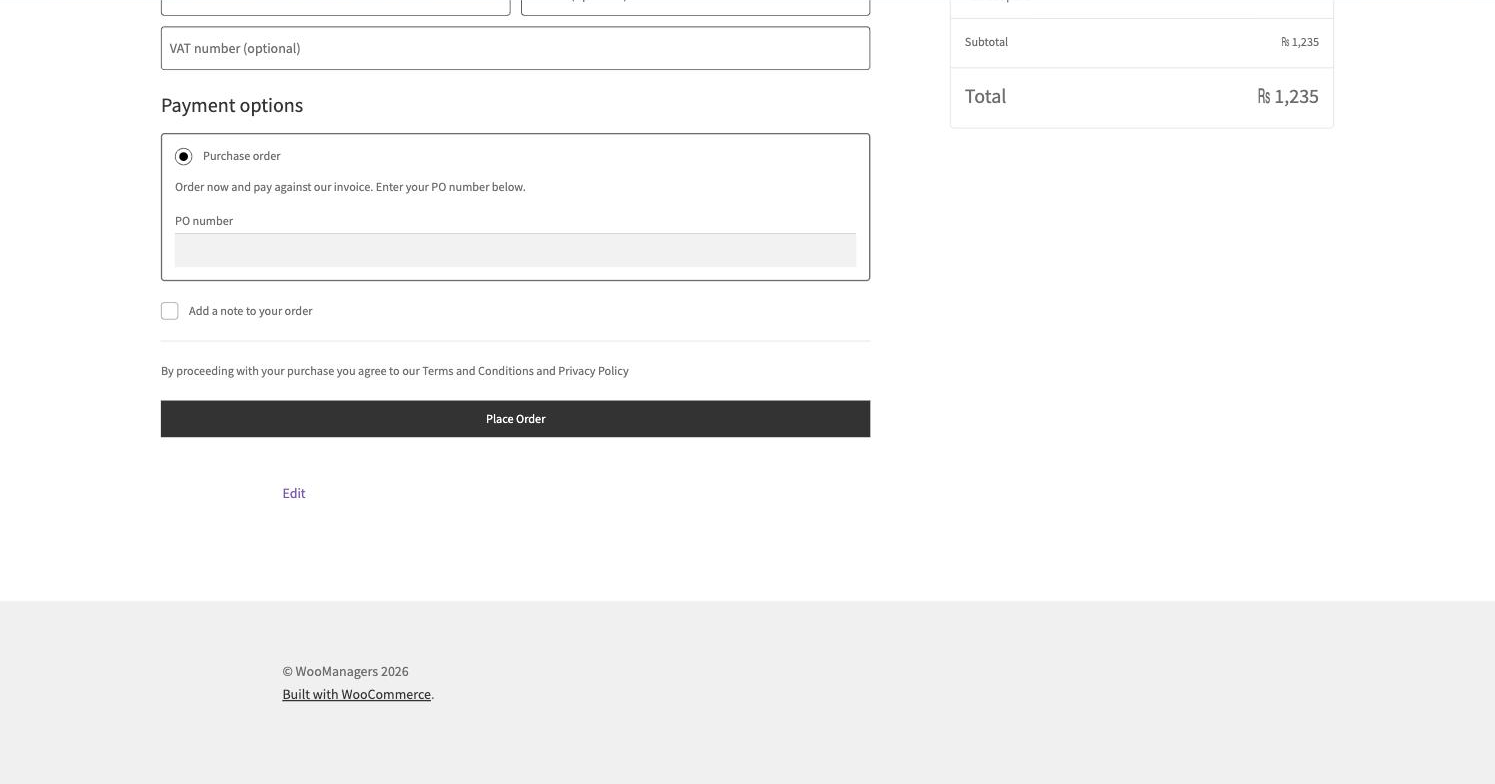
Purchase Order Payment Gateway adds a “Purchase order” payment method to your checkout. The buyer enters their PO number, the order is placed on hold with stock reduced, and you invoice them on your usual terms. It works on the classic checkout and the block checkout.
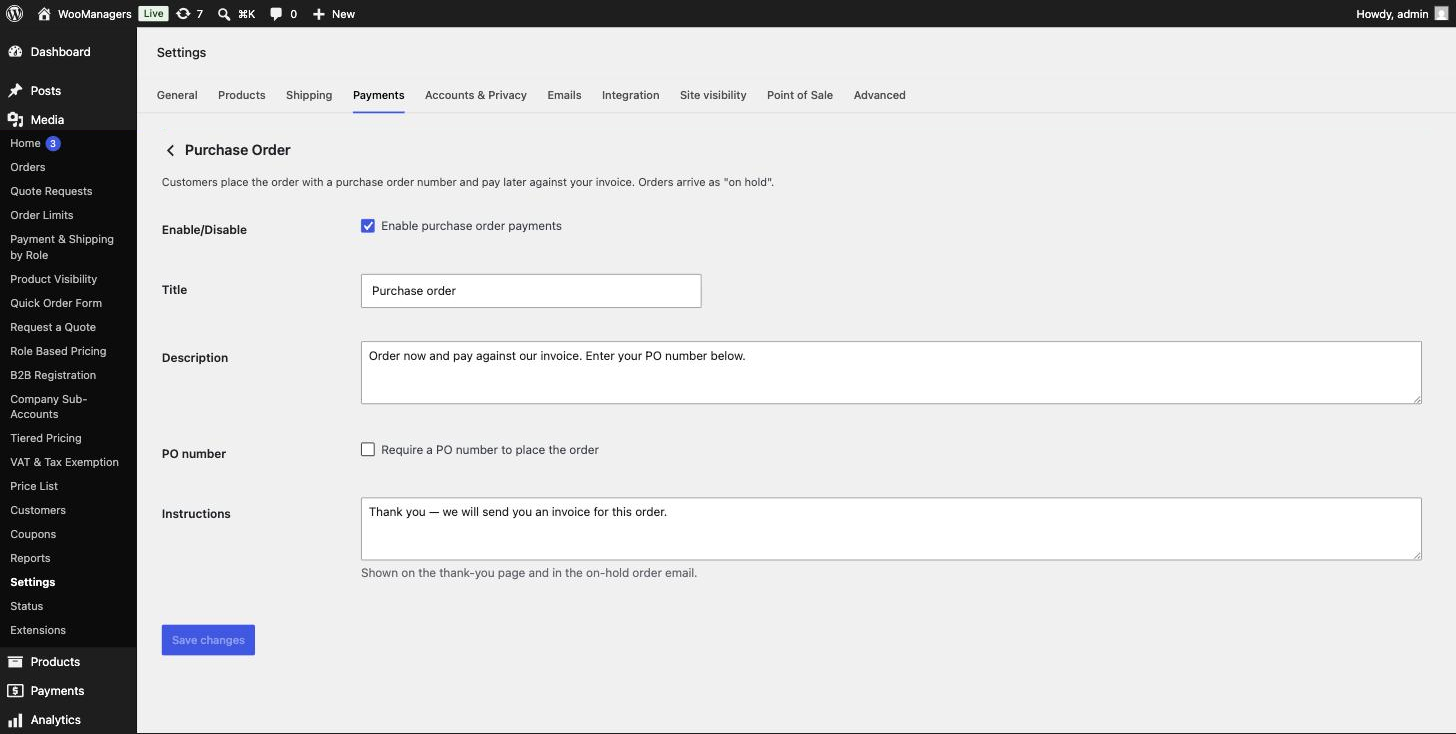
The PO number is saved on the order, added as an order note, shown on the admin order screen and included in the order emails. You configure the gateway like any other WooCommerce payment method, under WooCommerce → Settings → Payments → Purchase Order.
Purchase Order Payment Gateway Pro for WooCommerce runs the account behind it: it limits PO payment to chosen roles or customers, sets a minimum order total, gives each customer a credit limit with a live outstanding balance, checks the PO number format and uniqueness, stamps a due date on each order, and lists every unpaid purchase order with reminders. Its settings live under WooCommerce → Purchase Orders.
Where to find it: WooCommerce → Settings → Payments → Purchase Order
Requirements
- WordPress 5.6+ and PHP 7.4+
- WooCommerce 6.0+
- Compatible with WooCommerce High-Performance Order Storage (HPOS) and the block-based Cart and Checkout
- Pro: an active licence key for access rules, credit limits, PO number rules, payment terms and the unpaid PO report
Installation
- Free: go to Plugins → Add New Plugin, install the plugin (or click Upload Plugin and choose the zip), then activate it. It appears in your plugin list as “B2BM Purchase Order Payment Gateway for WooCommerce”.
- Go to WooCommerce → Settings → Payments, open Purchase Order, tick Enable purchase order payments and save. The gateway is off until you do this.
- Pro: go to Plugins → Add New Plugin → Upload Plugin, choose the Pro zip from your order and activate it. It appears in your plugin list as “Purchase Order Pro for WooCommerce”.
- Go to WooCommerce → Purchase Orders, open the License tab, paste the key from your order email (it looks like
WM-XXXX-XXXX-XXXX-XXXX) and click Activate License. - Pro uses the same gateway ID, the same gateway settings and the same PO number order data as the free plugin, so your settings and existing PO orders carry over. Pro deactivates the free plugin for you, so only one copy of the gateway is registered, and shows a notice: “The free version was deactivated automatically — your gateway settings and every existing PO order carried over.”
Take your first purchase order
- Go to WooCommerce → Settings → Payments and open Purchase Order.
- Tick Enable purchase order payments.
- Adjust the Title, Description and Instructions if you like. Tick Require a PO number to place the order if every PO order must carry one.
- Click Save changes.
- Place a test order and choose “Purchase order”. Enter a PO number in the PO number field.
- Open the order under WooCommerce → Orders: it is on hold, the PO number shows under the billing address and in an order note.
- With Pro, go to WooCommerce → Purchase Orders → Settings to decide who may pay by PO, set credit limits and payment terms.
Settings reference
| Setting | What it does | Edition |
|---|---|---|
| Enable/Disable | “Enable purchase order payments”. Default: off. | Both |
| Title | The payment method name at checkout. Default: “Purchase order”. | Both |
| Description | Text shown under the method at checkout. Default: “Order now and pay against our invoice. Enter your PO number below.” | Both |
| PO number | “Require a PO number to place the order”. When ticked, checkout is refused without one. Default: off. | Both |
| Instructions | Shown on the thank-you page and in the on-hold order email. Default: “Thank you — we will send you an invoice for this order.” | Both |
| Restrict | “Only offer purchase orders to the roles and customers below”. Leave off and anyone who can check out may pay by PO. Default: off. | Pro |
| Allowed roles | Roles that may pay by PO when Restrict is on. | Pro |
| Allowed customers | Named customers who may pay by PO whatever their role. Company sub-accounts inherit their parent account’s permission. | Pro |
| Minimum order total | Hide purchase order payment on smaller orders. Empty means no minimum (default). | Pro |
| Default credit limit | Applied to every customer without their own limit. Empty means no limit (default). | Pro |
| Over the limit | “Stop the order going through”: a PO order that would take the account past its credit limit is refused. Untick it to accept the order anyway; the order gets the note “Over credit limit — accepted anyway because blocking is switched off.” Default: on. | Pro |
| Required format | A pattern (regular expression) the PO number must match, for example ^PO-[0-9]{4,8}$. Matched without regard to case. Empty accepts anything (default). | Pro |
| Uniqueness | “Refuse a PO number that has already been used”. Default: off. | Pro |
| Days to pay | For example 30 for Net 30. Stamps a due date on each order when it is placed. 0 shows “Due on receipt”. Empty means no due date (default). | Pro |
| Reminder | Days after the due date to email the customer once. Empty means never chase automatically (default). | Pro |
| Credit limit (user profile) | In the “Purchase order credit” section of each user’s profile. Empty uses the store default; 0 stops the customer paying by purchase order. | Pro |
| License key | On the License tab: Activate License and Deactivate this site. | Pro |
What happens when a customer pays by purchase order
The order is set to on hold with the note “Awaiting invoice payment (purchase order).”, stock is reduced and the cart is emptied. Mark the order processing or completed once you have been paid.
The PO number is stored on the order, added as the note “Customer PO number: …”, shown as PO number: under the billing address on the admin order screen, and listed with the customer details in order emails. Your Instructions text appears on the thank-you page and in the customer’s on-hold email.
Who sees the gateway (Pro)
With Restrict on, the gateway is offered to customers in Allowed customers, to customers with one of the Allowed roles, and to sub-accounts whose parent company account is an allowed customer (when Company Sub-Accounts Pro is active). Guests never see a restricted gateway.
Minimum order total is compared with the cart total. On the pay-for-order page the cart is empty, so the minimum is not applied there.
Credit limits and the outstanding balance (Pro)
A customer’s outstanding balance is the total of their purchase order orders that are on hold or pending payment, less any refunds. Marking an order processing or completed frees that credit again. The order being placed is not counted against itself.
When Company Sub-Accounts Pro is active, every buyer in a company spends the parent account’s limit, and the parent’s own limit (or the store default) applies.
- At checkout, signed-in customers with a limit see Credit available: and, if you set Days to pay, Payment terms: (for example “Net 30”).
- While Stop the order going through is ticked, an order over the limit is refused with a message showing how much of the limit is left. With it unticked, the order goes through and gets an order note instead.
- Each user profile shows Currently outstanding and how much is still available.
Due dates, reminders and the Unpaid POs tab (Pro)
When Days to pay is set, the due date is stamped on the order as it is placed and does not move if you change the setting later. It shows as Payment due: on the admin order screen, in the order totals the customer sees, and in emails. An unpaid order is overdue from the day after its due date.
A daily task emails one reminder per order once it is the set number of Reminder days past due. The Unpaid POs tab lists every on-hold or pending purchase order, oldest first, with its PO number, placed date, due date and total. Overdue orders are marked “(overdue)” and have a Send reminder button. The menu item shows a count of overdue orders.
Without an active licence (Pro)
Purchase order payment keeps working for everyone, as in the free plugin. Access rules, minimum total, credit limits, PO number rules and due dates stop applying, the Unpaid POs tab is paused and the reminders stop. Your settings and limits are kept, and the Settings tab and profile fields show that they are paused. Saving the Settings tab is refused until a licence is active.
The licence is checked with the B2B Managers licence server about twice a day. If the server cannot be reached, the last answer is used for up to 14 days. Updates for Pro arrive through the normal WordPress updates screen while the licence is active.
Free and Pro compared
| Feature | Free | Pro |
|---|---|---|
| Purchase order payment method with PO number field | Yes | Yes |
| Classic and block checkout | Yes | Yes |
| PO number on the order, order note and emails | Yes | Yes |
| Limit PO payment to roles or named customers | No | Yes |
| Minimum order total for PO payment | No | Yes |
| Credit limits with live outstanding balance | No | Yes |
| PO number format and uniqueness rules | No | Yes |
| Payment terms with due dates | No | Yes |
| Unpaid POs report and reminder emails | No | Yes |
| Licence key and updates from b2bmanagers.com | No | Yes |
Troubleshooting
| What you see | What to do |
|---|---|
| The Purchase order option does not appear at checkout. | Check that Enable purchase order payments is ticked. With Pro, check Restrict, Allowed roles, Allowed customers and Minimum order total; guests never see a restricted gateway. Another plugin that hides payment methods by role can also remove it. |
| Checkout says “Please enter your PO number to pay by purchase order.” | Require a PO number to place the order is ticked and the field was empty. |
| Checkout says “That PO number is not in the format we expect. Please check it and try again.” | The number does not match Required format. Test the pattern, or empty the field to accept any number. |
| Checkout says “That PO number has already been used on another order.” | Uniqueness is on and another order carries that PO number. |
| A customer is told the order would take them past their credit limit. | Mark paid purchase orders processing or completed to free their credit, or raise the limit on their user profile. A limit of 0 refuses every purchase order. To accept orders over the limit and only get an order note, untick Stop the order going through. |
| “Credit available” is not shown at checkout. | It shows only to signed-in customers who have a limit, either their own or the Default credit limit. |
| The Settings tab shows “Pro feature — license required”. | Enter your key on the License tab. Your saved values are kept meanwhile. |
| The free plugin is active again next to Pro on the Plugins screen. | You activated it again while Pro is active, so two copies of the gateway are registered. Deactivate the free plugin again; Pro already uses its settings. |
Uninstalling
Deactivating either plugin removes the payment method from checkout and keeps your settings. Deactivating Pro also clears its scheduled tasks (the licence check and the daily overdue check).
Deleting the free plugin deletes the gateway settings (title, description, instructions and the PO number option). While Pro or the B2B Managers Suite is installed (active or not), it deletes nothing, because they use the same settings. PO numbers stored on orders are kept.
Deleting Pro always deletes the stored licence key and licence status and its scheduled licence check. The Pro settings, the daily overdue check and every customer’s credit limit are kept while the suite is installed. The gateway settings are kept while the free plugin or the suite is installed. With neither installed, everything is deleted. PO numbers and due dates stored on orders are kept. Deleting does not release the licence on the server, so click Deactivate this site on the License tab first if you want to use the key elsewhere.
Questions people ask
What status do purchase order orders get?
On hold, with stock reduced, the same as bank transfer orders. Mark them processing or completed once you have been paid.
Can I make the PO number mandatory?
Yes. Tick Require a PO number to place the order in the gateway settings. Both checkouts then refuse the order without one.
Can only wholesale customers see this payment method?
With Pro, turn on Restrict and choose the roles or customers under WooCommerce → Purchase Orders → Settings. With the free plugin, you can hide the gateway by role with Payment & Shipping Methods by Role (see its documentation).
How is the outstanding balance calculated?
From your orders: every purchase order order that is on hold or pending payment counts, less refunds. Once you mark it processing or completed it stops counting.
How do I stop one customer paying by purchase order?
Set their Credit limit to 0 on their user profile, and keep Stop the order going through ticked. An empty limit means the store default applies.
Do reminders go out more than once?
No. Each order gets one automatic reminder. Sending one by hand from the Unpaid POs tab also counts, so the daily task will not send another.
What happens if my Pro licence expires?
Purchase order payment keeps working for everyone. Access rules, credit limits, PO number rules and terms are kept but not enforced, and the Unpaid POs tab is paused until a key is active again.