
What it does
Payment & Shipping Methods by Role lets you decide which customers see which payment gateways and shipping methods at checkout. A typical B2B set-up offers bank transfer or purchase orders to wholesale accounts while retail customers pay by card, and keeps trade-only shipping options away from the public.
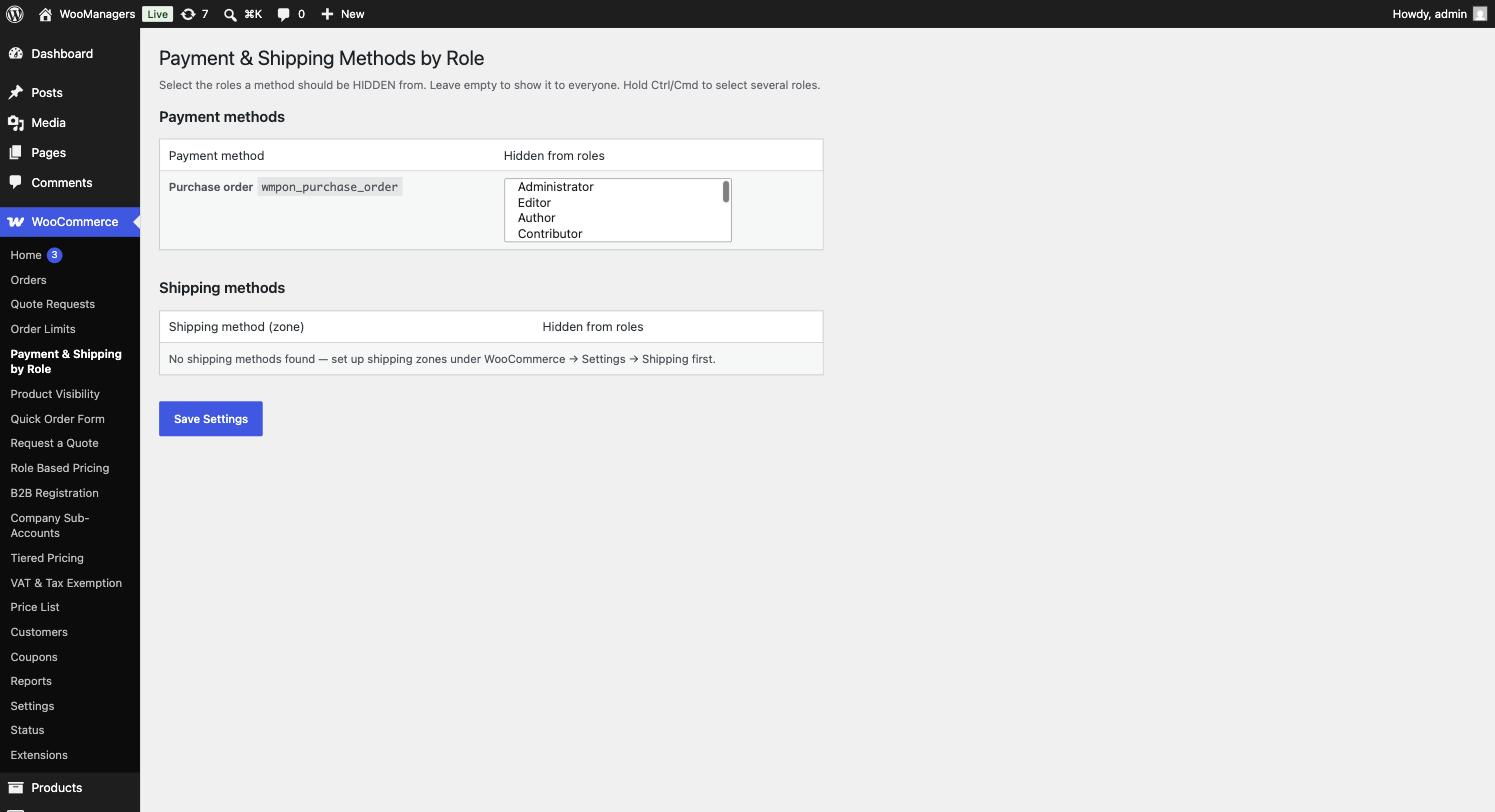
The free plugin is a single matrix: for every enabled payment gateway and every shipping method in every zone, you pick the roles it should be hidden from. Logged-out visitors count as a role of their own, “Guest (not logged in)”. The rules apply on the classic checkout and the block checkout, and leave the admin area alone, so you still see every gateway when you create an order by hand.
Payment & Shipping Methods by Role Pro for WooCommerce keeps that matrix and adds two screens: Method rules, which hide or show a method by country, cart subtotal, named customer and date as well as role, and Payment surcharges, which add a percentage or fixed fee, or a discount, to a payment method.
Where to find it: WooCommerce → Payment & Shipping by Role
Requirements
- WordPress 5.6+ and PHP 7.4+
- WooCommerce 4.0+
- Compatible with WooCommerce High-Performance Order Storage (HPOS) and the block-based Cart and Checkout
- At least one enabled payment gateway (WooCommerce → Settings → Payments) and, for shipping rules, at least one shipping zone with methods (WooCommerce → Settings → Shipping)
- Pro: an active licence key for Method rules and Payment surcharges
Installation
- Free: go to Plugins → Add New Plugin, install the plugin (or click Upload Plugin and choose the zip), then activate it. It appears in your plugin list as “B2BM Payment & Shipping Methods by Role for WooCommerce”.
- Open WooCommerce → Payment & Shipping by Role to set it up.
- Pro: go to Plugins → Add New Plugin → Upload Plugin, choose the Pro zip from your order and activate it. It appears in your plugin list as “Payment & Shipping by Role Pro for WooCommerce”.
- Go to WooCommerce → Methods license, paste the key from your order email into the field (it looks like
WM-XXXX-XXXX-XXXX-XXXX) and click Activate License. The screen then shows “License active” and the expiry date. - Pro reads the same saved settings as the free plugin, so your role matrix is already in place. Pro deactivates the free plugin for you and shows a notice: “The free version was deactivated automatically — every setting carried over.”
Hide a payment method from a role
- Make sure the gateway is enabled under WooCommerce → Settings → Payments. Only enabled gateways are listed.
- Go to WooCommerce → Payment & Shipping by Role.
- In the Payment methods table, find the gateway (its ID is shown next to the name, for example
cod). - In its Hidden from roles list, select the roles that must not see it. Hold Ctrl (Windows) or Cmd (Mac) to select several. Choose “Guest (not logged in)” to hide it from visitors who are not signed in.
- Do the same for any shipping method in the Shipping methods table. Each row is one method in one zone, labelled “Zone — Method”.
- Click Save Settings, then check the checkout as a customer with that role.
Settings reference
| Setting | What it does | Edition |
|---|---|---|
| Payment methods → Hidden from roles | One list per enabled payment gateway. The gateway is hidden from customers who have any of the selected roles. Leave it empty to show the gateway to everyone (default). | Both |
| Shipping methods → Hidden from roles | One list per shipping method in each zone, including “Locations not covered by your other zones”. Leave it empty to show the method to everyone (default). | Both |
| Guest (not logged in) | A choice in every role list that stands for visitors who are not signed in. | Both |
| Method rules → Name and On | A label for the rule (placeholder “No COD abroad”) and a tick box that switches it on. New rules are on by default. | Pro |
| Method rules → Method | Choose Payment or Shipping, then type the gateway ID (for example cod) or the shipping instance ID the rule acts on. Default: Payment. | Pro |
| Method rules → Verdict | Hide when… removes the method when every condition holds. Show only when… offers it only when every condition holds and hides it everywhere else. Default: Hide when…. | Pro |
| Method rules → Roles | The roles (and “Guests”) the rule applies to. Leave empty for any customer. | Pro |
| Method rules → Conditions | Two-letter country codes separated by commas (for example GB, IE), a min and max cart subtotal, and customer IDs. Empty fields are ignored. | Pro |
| Method rules → Dates | Optional start and end dates. Outside them the rule does nothing. | Pro |
| Payment surcharges → Type | % of the cart subtotal or a Fixed amount. Default: %. | Pro |
| Payment surcharges → Amount | The fee for this payment method. A negative amount is a discount. Leave empty (or 0) for no fee. | Pro |
| Payment surcharges → Label on the totals | The name of the fee line at checkout. If empty, it reads “Payment surcharge”, or “Payment discount” for a negative amount. | Pro |
| Payment surcharges → Only these roles | Limit the fee to these roles (and “Guests”). Leave empty to apply it to everyone (default). | Pro |
| Payment surcharges → Taxable | Tick Yes to charge tax on the fee. Default: off. | Pro |
| Methods license → License key | Your Pro licence key, activated with Activate License and released with Deactivate this site. | Pro |
How a method is hidden
The role matrix is checked first. If any of the customer’s roles is in a method’s Hidden from roles list, the method is removed. Customers with several roles lose the method as soon as one role matches.
With Pro, every enabled rule for that method is then checked. A Hide when… rule removes the method when all of its conditions hold. A Show only when… rule removes it when any condition does not hold. If any rule says hide, the method is hidden.
- All conditions on one rule must hold. For an either/or, write two rules.
- If you fill in both roles and customer IDs, a named customer matches whatever their role.
- The country is the customer’s shipping country, or their billing country if no shipping country is set.
- Cart value means the cart subtotal. The min and max values are inclusive.
- Dates are compared with today’s date in UTC.
Where the rules apply
Payment gateways are filtered on the classic checkout and the block checkout, and on the pay-for-order page. Shipping rates are filtered per package whenever WooCommerce works out shipping. Admin screens are not filtered, so manual orders can still use every gateway.
Shipping rules work per zone method, so the same “Flat rate” can be visible in one zone and hidden in another. Shipping instance IDs are shown on each method under WooCommerce → Settings → Shipping. Gateway IDs are shown in code next to each gateway on the Payment & Shipping by Role and Payment surcharges screens.
Payment surcharges and discounts (Pro)
Open WooCommerce → Payment surcharges. Each payment gateway has one row. Enter a percentage or fixed amount and, if you like, a label and the roles it applies to, then click Save Surcharges.
The fee is added for the payment method the customer has chosen and is worked out again from scratch on every totals calculation, so switching methods never stacks fees. A percentage is always taken on the cart subtotal, never on a total that already includes the fee. Rows with no amount are not saved.
Without an active licence (Pro)
The role matrix keeps working exactly as in the free plugin. Method rules stop applying and no surcharge or discount is added. The Method rules and Payment surcharges screens show “Pro feature — license required” with Enter license key and Buy a license buttons, your saved rules and fees stay as they are, and saving those screens is refused until a licence is active.
The licence is checked with the B2B Managers licence server about twice a day. If the server cannot be reached, the last answer is used for up to 14 days. Updates for Pro arrive through the normal WordPress updates screen while the licence is active.
Free and Pro compared
| Feature | Free | Pro |
|---|---|---|
| Hide payment gateways by role or for guests | Yes | Yes |
| Hide shipping methods per zone by role or for guests | Yes | Yes |
| Classic and block checkout | Yes | Yes |
| Conditions by country, cart subtotal and named customer | No | Yes |
| “Show only when…” rules | No | Yes |
| Start and end dates on rules | No | Yes |
| Surcharges or discounts per payment method | No | Yes |
| Surcharges limited to chosen roles, optionally taxable | No | Yes |
| Licence key and updates from b2bmanagers.com | No | Yes |
Troubleshooting
| What you see | What to do |
|---|---|
| A gateway is missing from the Payment methods table. | Only gateways enabled under WooCommerce → Settings → Payments are listed. Enable it there, then reload the screen. |
| The Shipping methods table says “No shipping methods found”. | Add a shipping zone with at least one method under WooCommerce → Settings → Shipping first. |
| A hidden method still shows for a customer. | Check the customer’s roles on their user profile. A customer who is not signed in is matched as “Guest (not logged in)”, not as their account role. Then test in a private window while signed in as that customer. |
| You still see every gateway when creating an order in the admin. | That is by design: admin screens are not filtered. |
| A Pro rule has no effect. | Check that On is ticked, the Method type matches (Payment or Shipping), the ID is exact (gateway ID or shipping instance ID), every condition holds, and today is inside the dates. Country codes must be two letters. |
| A surcharge does not appear at checkout. | Make sure the amount is not empty or 0, the customer has one of the roles in Only these roles (if set), and the licence is active. |
| Saving Method rules or Payment surcharges shows “These settings require an active Payment & Shipping by Role Pro license.” | Activate your key under WooCommerce → Methods license. |
| There are two Payment & Shipping by Role menu items. | You activated the free plugin again while Pro is active. Deactivate the free plugin again; Pro already uses its settings. |
Uninstalling
Deactivating either plugin stops the filtering and keeps your settings. Deactivating Pro also clears its scheduled licence check.
Deleting the free plugin removes its settings (the wmpsr_settings option, which holds the role matrix). While Pro or the B2B Managers Suite is installed (active or not), it removes nothing, because they use the same option.
Deleting Pro always removes the stored licence key and licence status and clears its scheduled licence check. It keeps the Method rules and Payment surcharges while the suite is installed, and the role matrix while the free plugin or the suite is installed. With neither installed, it removes them all. Deleting does not release the licence on the server, so click Deactivate this site under WooCommerce → Methods license first if you want to use the key on another site.
Questions people ask
Does it work with the block checkout?
Yes. Payment gateways and shipping rates go through the same WooCommerce filters on the classic and block checkout, so both behave the same.
Can I hide a shipping method in one zone only?
Yes. Rules are per zone method, so the same method can be visible in one zone and hidden in another.
What if a customer has two roles?
If any of their roles is in a method’s hidden list, the method is hidden for them.
What is the difference between “Hide when…” and “Show only when…”?
“Hide when…” removes the method in the situation you describe. “Show only when…” offers it only in that situation and hides it everywhere else, which stays correct when you add a new country.
Can I charge more for card and give a discount for bank transfer?
Yes, with Pro. On WooCommerce → Payment surcharges, enter a positive amount for the card gateway and a negative amount for bank transfer.
Is the percentage taken on the total including the fee?
No. It is always taken on the cart subtotal.
What happens if my Pro licence expires?
The role matrix keeps working. Method rules stop applying and no surcharges are added. Your rules and fees are kept and apply again once a key is active.