
What it does
Product Visibility by User Role for WooCommerce hides products or whole product categories from guests, from chosen user roles, or from everyone. Hidden items drop out of the shop, category and search pages, product loops and category lists, and their URLs and add-to-cart links are blocked too.
Use it to keep a trade range away from the public, keep retail-only items away from wholesale buyers, or pull products from the storefront for a while without changing their status. Each rule hides a set of products or categories from one role, and all matching rules apply together.
Product Visibility Pro for WooCommerce adds more control to each rule: several roles and named customers, products by tag, a show-only mode for trade-only ranges, a soft mode that keeps products listed without a price, start and end dates, and a redirect. It also adds an access-request form, so a visitor who opens a hidden product can ask for access instead of being sent to the shop.
Where to find it: WooCommerce → Product Visibility
Requirements
- WordPress 5.6+ and PHP 7.4+
- WooCommerce 4.0+ (the plugin shows an admin notice and does nothing if WooCommerce is not active)
- Compatible with WooCommerce High-Performance Order Storage (HPOS) and the block-based Cart and Checkout
Installation
- Free: go to Plugins → Add New Plugin, search for “Product Visibility by User Role”, then install and activate it. You can also upload the zip under Plugins → Add New Plugin → Upload Plugin.
- Pro: upload the Pro zip under Plugins → Add New Plugin → Upload Plugin and activate it. Pro deactivates the free plugin for you and shows a notice: “The free version was deactivated automatically — every rule you had written carried over.” Pro reads the same rules, so they keep working. You can then delete the free plugin: while Pro is installed, its uninstall keeps the rules.
- Pro licence: go to WooCommerce → Visibility license, paste the key from your order email and click Activate License.
Hide your trade range from guests
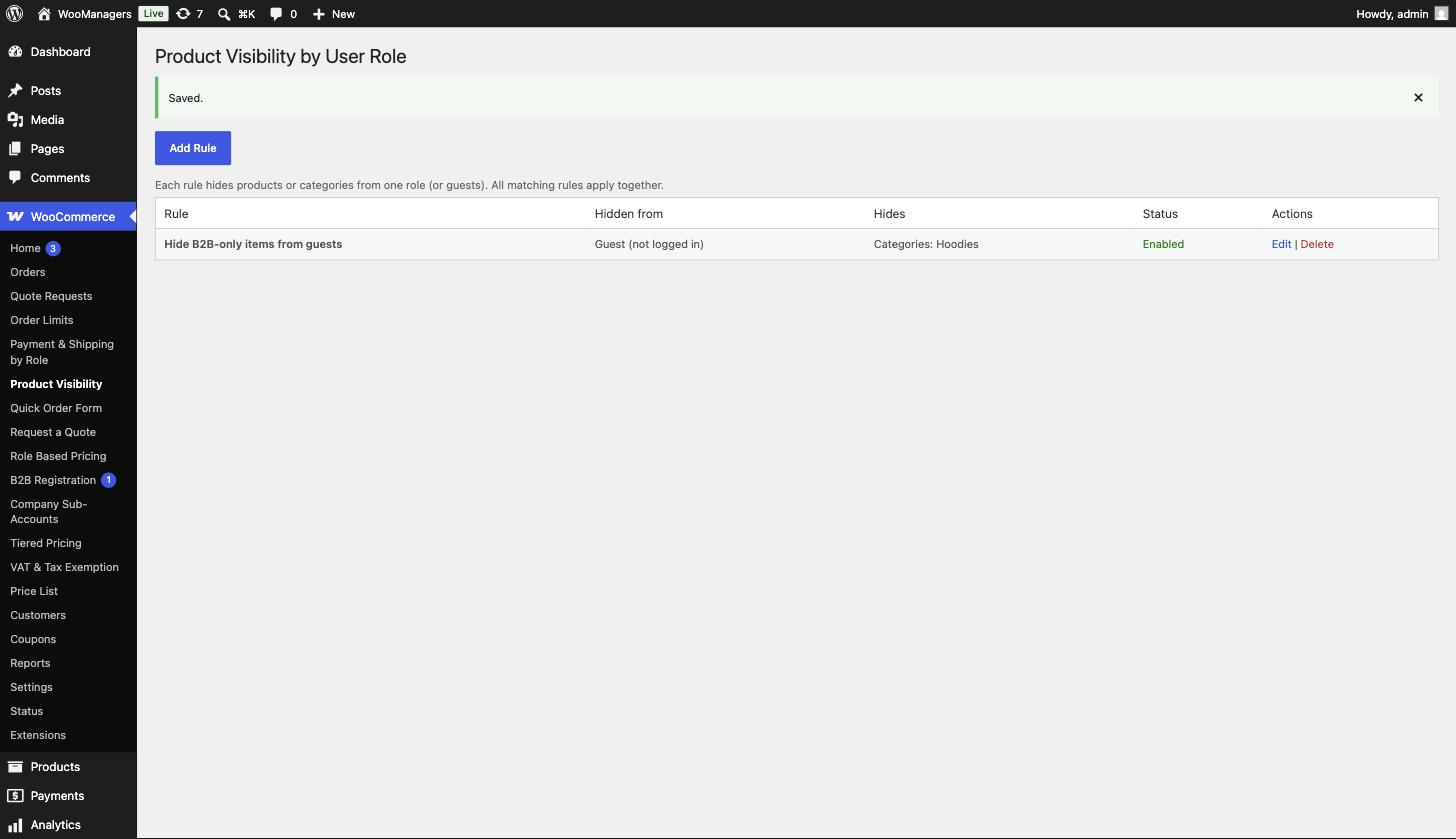
- Go to WooCommerce → Product Visibility and click Add Rule.
- Enter a Rule name, for example “Hide B2B items from guests”.
- In Hide from, choose Guest (not logged in).
- Under What to hide, choose Specific products and search for the products, or choose Whole categories (including their subcategories and all their products) and select the categories.
- Leave Rule is enabled ticked and click Save Rule.
- Open your shop in a private browser window. The products are gone from the shop and search, and opening one of their URLs takes you to the shop page.

Settings reference
| Setting | What it does | Edition |
|---|---|---|
| Rule name | A name for the rule. Required. | Both |
| Hide from | Any user role on your site, Guest (not logged in) or Everyone (hide from all visitors). Default: Guest (not logged in). With a Pro licence this field is called Role and has a “None” choice, for rules that only use More roles or Customers. | Both |
| Mode | Hide from the roles and customers on the rule (default), Show only to them and hide from everyone else, or Soft: keep the products listed but replace the price with a message and remove add to cart. | Pro |
| More roles | Extra roles the rule covers, on top of the main role. Hold Ctrl/Cmd to select several. | Pro |
| Customers | Named customers the rule covers, whatever their role. Search by name or email. | Pro |
| What to hide | Specific products or Whole categories (including their subcategories and all their products). Pro adds Products with these tags. Default: Specific products. | Both |
| Products | Search and pick products. Used when Specific products is selected. | Both |
| Categories | Pick one or more product categories (hold Ctrl/Cmd to select several). Used when Whole categories is selected. | Both |
| Tags | Pick one or more product tags. Used when Products with these tags is selected. Products you tag later are covered straight away. | Pro |
| Active dates | Optional first and last day the rule applies (both included, UTC). Leave either empty for no limit. | Pro |
| Soft-mode message | Shown instead of the price in Soft mode. Default: “Trade price — log in to see it”. | Pro |
| Redirect to | Product rules only: a page on this site to send a visitor to when they open a hidden product, instead of the shop page. | Pro |
| Status | “Rule is enabled”. Untick to keep the rule but stop it applying. Default: on. | Both |
| Ask instead of bounce | “Show a short form where a hidden product would have been”. Default: off. | Pro |
| Heading | The form’s heading. Default: “This is a trade product”. | Pro |
| Wording | The line under the heading. Default: “Tell us who you are and we will get you access to trade pricing.” | Pro |
| After sending | The message shown once the form is sent. Default: “Thank you — we have your request and will be in touch shortly.” | Pro |
| Email requests to | Where new requests are emailed. Default: the site admin email. | Pro |
Where hidden items disappear
A product is hidden from a visitor when a matching rule lists it, lists a category it belongs to, or a parent of that category. Variations follow their parent product. With Pro, a rule can also match products by tag.
- Shop, category, tag and search pages: hidden products and products in hidden categories are left out of the results.
- Related products, cross-sells and shortcode loops: hidden products are treated as not visible.
- Product URLs: opening a hidden product redirects to the shop page (Pro can redirect elsewhere or show the access-request form instead).
- Category URLs: opening a hidden category archive, or one of its subcategories, redirects to the shop page.
- Add to cart: blocked for hidden products, including
?add-to-cart=links, with the notice “This product is not available.” - Category lists: hidden categories are removed from category widgets, menus and the
shortcode on the storefront. - Rules don’t change anything in wp-admin. Your product lists and orders look the same.
How rules combine
Rules stack. Every enabled rule that matches the visitor adds its products and categories to what is hidden. There is no order or priority to manage.
A logged-in customer matches a rule when the rule’s role is one of their roles. Visitors who are not logged in match Guest (not logged in). Everyone matches all visitors, including you when you browse the shop. With Pro, a customer also matches when they have one of the rule’s More roles or are named under Customers, and a rule outside its Active dates matches nobody.
In the free plugin each rule targets one role, so add a rule for each role. Pro rules can name several roles and customers at once.
Show-only and soft rules (Pro)
Show only to turns a rule around: the products are visible only to the roles and customers on the rule, and hidden from everyone else. Use it for a trade-only range, so a role you add later is kept out automatically.
Soft keeps the products in the shop, search and on their own pages, but replaces the price with your Soft-mode message and removes add to cart. With the access-request form switched on, the button becomes Request access. Use it when the product pages should stay visible to search engines.
Access requests (Pro)
Go to WooCommerce → Access requests, tick Ask instead of bounce and click Save Settings. From then on, a visitor who opens a hidden product’s URL sees a page in your theme with your heading, wording and a form, instead of being sent to the shop.
The form asks for Your name, Email, Company and Anything else?, and records which product they were trying to reach. A hidden honeypot field catches bots, which are shown the thank-you message but not saved.
- Each request is emailed to the Email requests to address with the subject “Access request at” and your site name.
- Requests are listed under Requests on the same screen, newest first, with Who, Email, Product, Message and When. New requests are in bold and counted on the menu badge.
- Click Done to mark a request handled, or × to delete it.
- Hidden category pages still redirect to the shop. The form appears on product pages only.
Free and Pro compared
| Feature | Free | Pro |
|---|---|---|
| Hide products or categories (with subcategories) by role | Yes | Yes |
| Several roles and named customers per rule | No | Yes |
| Target products by tag | No | Yes |
| Show-only and soft modes | No | Yes |
| Active dates and custom redirect | No | Yes |
| Guest and Everyone options | Yes | Yes |
| Removed from shop, search, category pages and loops | Yes | Yes |
| Direct URLs and add to cart blocked | Yes | Yes |
| Hidden categories removed from widgets and menus | Yes | Yes |
| Access-request form on hidden product pages | No | Yes |
| Access requests screen with email alerts | No | Yes |
Troubleshooting
| What you see | What to do |
|---|---|
| A hidden product still shows for the role | Check the rule is enabled and targets the right role, and that you are testing as a user with that role. A page cache can serve the same page to every visitor, so exclude logged-in users from caching or clear the cache. |
| Guests still see hidden products | Clear your page cache and any CDN cache. Cached shop pages were built before the rule existed. |
| Hiding one variation does nothing | Visibility works on whole products. Select the parent product instead. |
| A custom product grid still lists hidden products | Grids that don’t use WooCommerce’s product query or visibility check can still list them. Their URLs and add to cart stay blocked. |
| The access-request form doesn’t appear (Pro) | Check the licence is active under WooCommerce → Visibility license and that Ask instead of bounce is ticked. The form shows on hidden product pages only. |
Uninstalling
Deactivating stops all hiding straight away, so every product becomes visible again. Your rules are kept. Deactivating Pro also clears its scheduled licence check.
Deleting the free plugin removes the wmpvr_rules option, which holds every rule. While Pro or the B2B Managers Suite is installed (active or not), it removes nothing, because they use the same option.
Deleting Pro always removes its licence data and its scheduled licence check. It also removes the access-request settings and every saved access request unless the suite is installed, and the rules unless the free plugin or the suite is installed. Deleting does not release the licence on the server, so click Deactivate this site under WooCommerce → Visibility license first if you want to use the key on another site.
Questions people ask
What happens when someone opens a hidden product’s URL?
They are redirected to the shop page. With Pro and Ask instead of bounce switched on, they see the access-request form instead.
Do category rules hide the products inside the category?
Yes. The category page, its subcategories, the categories in widgets and menus, and every product in them are hidden for the targeted role.
Can I hide something from everyone?
Yes. Choose Everyone (hide from all visitors). It is handy for pulling items for a while without changing their status.
Does a rule hide products from me in wp-admin?
No. Rules only apply on the storefront. If a rule targets your role or Everyone, you won’t see the items when you browse the shop.
Can one rule target several roles?
In the free plugin, no: add one rule per role. Pro adds More roles and Customers to each rule. Rules stack, so a customer with several roles doesn’t see anything hidden from any of those roles.
Where do access requests go? (Pro)
To WooCommerce → Access requests and to the email address in Email requests to.
What happens if my Pro licence expires?
Each rule keeps hiding what it hid, using its main role only. More roles, customers, tags, show-only and soft modes, dates and redirects stop applying until you activate a key, and nothing is deleted. The access-request form closes and hidden products redirect to the shop again. Saved requests are kept.