WooCommerce is built for retail out of the box: one price per product, card checkout, and anyone can register. But it’s also one of the most flexible platforms for B2B, because every piece of wholesale behaviour can be added as a focused extension — without paying for an enterprise suite or a higher SaaS plan. That flexibility is what makes a WooCommerce B2B store so cost-effective for small and mid-sized wholesalers.
This guide walks through the setup in the order we recommend, so each step builds on the last. You can follow it for a wholesale-only store or a hybrid store that sells to both consumers and businesses.
Step 1: Decide your store model
Answer three questions before touching settings:
- Who can buy? Anyone, or only approved businesses?
- Who can see prices? Everyone, logged-in users, or only approved trade accounts?
- Do retail and trade customers share a catalogue? Some products may be trade-only, others retail-only.
Your answers decide which of the following steps you need. A wholesale-only portal needs registration approval and hidden prices; a hybrid store needs group pricing and careful testing so retail visitors never see trade prices.
Step 2: Get the WooCommerce basics right
A few core settings matter more for B2B than for retail:
- WooCommerce → Settings → Tax: enable taxes and decide whether you enter prices inclusive or exclusive of tax. Most B2B stores enter and display prices excluding tax, because business buyers think in net prices. You can display prices differently in the shop and the cart if needed; WooCommerce’s own tax settings guide explains every option.
- WooCommerce → Settings → Accounts & Privacy: allow customers to create an account on the My Account page. Guest checkout is usually disabled for wholesale-only stores, since every order should belong to a known account.
- Products: make sure every product has a SKU. B2B buyers search and order by SKU, and quick order forms rely on it.
- Inventory: decide whether to show stock quantities. Wholesale buyers planning large orders often appreciate exact numbers.
Step 3: Create customer groups (user roles)
Every B2B rule — price, minimum, payment method, visibility — hangs off customer groups. In WordPress, the simplest and most robust way to model a group is a user role. WooCommerce gives every shopper the “Customer” role; you add roles such as:
- Wholesale — standard trade customers.
- Distributor — higher-volume partners with deeper discounts.
- Key account — a small number of strategic customers with negotiated pricing.
Keep it to three to five groups. Every extra group multiplies the combinations you have to test. Individual exceptions are better handled per customer than by adding a new group.
Step 4: Add registration and approval
For wholesale, the registration form needs more than an email address. Typically you’ll collect:
- Company name and trading address
- Tax ID — a resale certificate number in the US, or a VAT number in the EU
- Business type (retailer, distributor, installer…)
- Expected order volume and how they heard about you
New registrants should land in a “pending” state where they can’t see trade prices or buy until you approve them — and approval should assign the right role automatically. Our B2B Registration & Approval extension does exactly this: custom registration fields, manual approval, and role assignment. More detail in how to gate a wholesale portal.
Step 5: Set up trade pricing
There are three common approaches, and most stores combine them:
| Approach | How it works | Best for |
|---|---|---|
| Group discount | A percentage off retail for a role, storewide or per category | Simple trade discounts, quick setup |
| Fixed group price | A specific price per role per product | Contracted prices, distributors |
| Quantity tiers | Price drops at volume breaks (10+, 50+, 100+) | Encouraging larger orders |
Role Based Pricing handles the first two; Tiered Pricing adds volume breaks with a price table on the product page. See customer-specific pricing and tiered pricing for design advice.
Step 6: Control what each group can see
Decide what guests and retail customers see:
- Hide prices and Add to Cart for guests — the catalogue stays public (good for SEO) but prices appear only after login. Hide Price & Add to Cart replaces them with a “Log in to see prices” message or a link.
- Limit whole products or categories to certain groups — trade-only lines, or retail-only items wholesale accounts shouldn’t order. Product Visibility by User Role handles this.
Read when to hide prices before deciding — hiding prices has SEO and conversion trade-offs.
Step 7: Add order rules
Wholesale orders need guard rails:
- Minimum quantity per product (e.g. at least 12)
- Quantity steps to match case sizes (multiples of 6)
- Minimum order value to keep picking and shipping profitable
Min Max Order Rules covers all three. Apply them to trade roles only if retail customers share the store. See how to set minimums.
Step 8: Make ordering fast
Your best customers already know what they want. Give them a quick order form — a single page where they search by name or SKU, enter quantities for many products and add everything to the cart at once. For items that need negotiation, add a Request a Quote button with a separate quote basket.
Step 9: Configure payment methods per group
A sensible default:
- Guests and retail: card and wallet payments only.
- New trade accounts: card, plus bank transfer.
- Established trade accounts: add invoice / purchase order payment on terms.
Purchase Order Payment Gateway lets approved buyers enter a PO number at checkout, and Payment & Shipping Methods by Role controls which gateways and shipping methods each group sees. See offering Net 30 terms.
Step 10: Handle tax for business customers
- US: collect and store resale or exemption certificates; mark verified customers as tax-exempt. See resale certificates for B2B stores.
- EU: collect VAT numbers at checkout, validate them against VIES, and remove VAT for qualifying cross-border B2B sales under the reverse charge. See VIES validation.
VAT Number & Tax Exemption adds VAT number fields with per-country format validation and lets you mark trusted customers as exempt.
Step 11: Support company accounts
If your customers have several people ordering, let a parent account create buyer sub-accounts and see all company orders. Company Sub-Accounts does this from My Account. See company accounts explained.
Step 12: Give buyers a price list
Many buyers still share a printed or PDF price list internally. A wholesale price list generated from the store — showing each visitor their own prices — removes a recurring spreadsheet job from your sales team.
WooCommerce B2B pre-launch testing checklist
Create one test account per role and run through each of these:
- As a guest: are prices hidden or shown as intended? Can you add to cart?
- As each role: are the right prices shown on category pages, product pages, cart and checkout?
- Do quantity tiers apply at the correct breaks?
- Are minimums and steps enforced in the cart, with a clear message?
- Does each role see only the intended payment and shipping methods?
- Is tax correct for a domestic customer, an exempt customer, and (if relevant) an EU cross-border customer with a valid VAT number?
- Do order emails and invoices show the PO number, VAT numbers and net prices correctly?
- Does a pending (unapproved) account see what you expect?
- Do sub-accounts see the right order history?
Performance and maintenance
WooCommerce B2B stores often have large catalogues and logged-in users, which bypass most page caching. Choose lightweight extensions that do one job each, keep the number of active plugins reasonable, and use object caching on your host if available. Update extensions on staging first — pricing logic is the last thing you want to break on a Monday morning.
Want help with the setup?
We build and configure WooCommerce B2B stores and write custom extensions when a requirement doesn’t fit off-the-shelf tools. Tell us about your store.
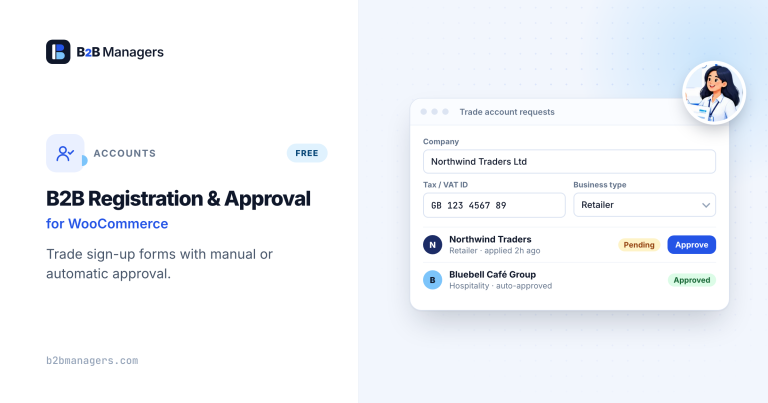
B2B Registration & Approval for WooCommerce
A B2B registration form with your own custom fields and manual account…
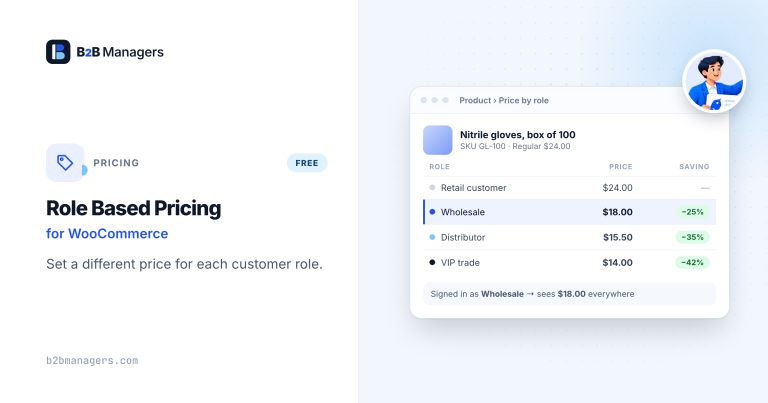
Role Based Pricing for WooCommerce
Different prices for every customer role — percentage or fixed discounts, fixed…
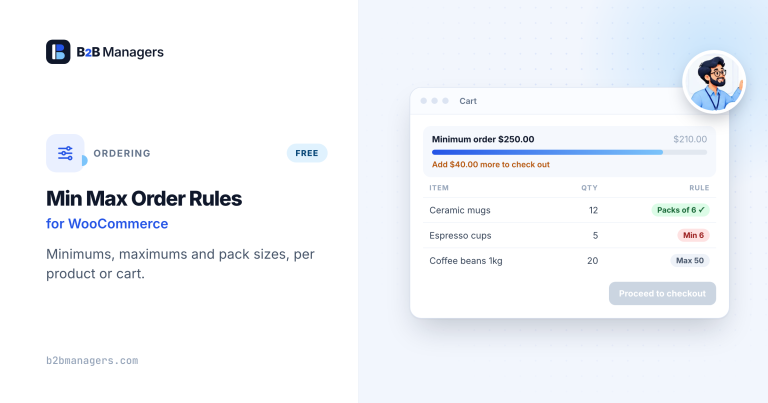
Min Max Order Rules for WooCommerce
Minimum and maximum quantities, quantity steps (sell in packs of 6), and…
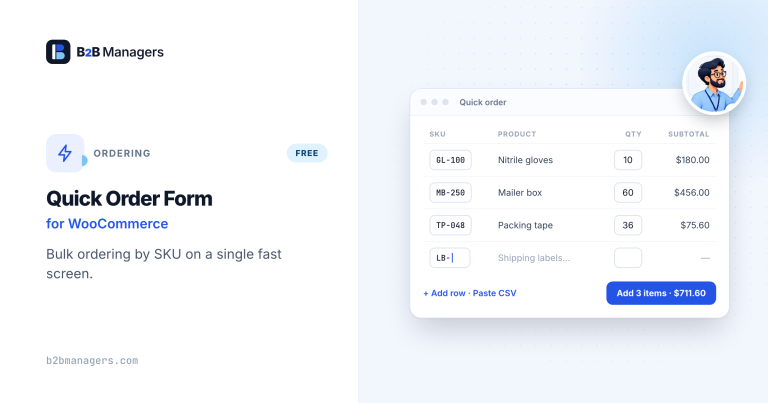
Quick Order Form for WooCommerce
A one-page wholesale order form: search by name or SKU, type quantities…
Frequently asked questions
Can WooCommerce handle B2B out of the box?
Partly. It handles catalogue, cart, orders, tax rates and payments well. B2B-specific behaviour — group pricing, approval, minimums, terms — needs extensions or custom code.
Should I use one large B2B plugin or several small ones?
Large suites bundle everything, which is convenient but loads code you may not use. Focused extensions let you add only what you need and are easier to troubleshoot. Both approaches work; the right choice depends on how many B2B features you need.
Can I run retail and wholesale on one WooCommerce store?
Yes. Customer roles decide which prices, products, payment methods and tax rules each visitor sees. Test every role carefully before launch.
How long does a WooCommerce B2B setup take?
It depends on catalogue size and how many B2B features you need. A WooCommerce B2B store with a few customer groups, trade pricing and invoice payments can often be configured and tested in days. However, ERP integration or complex contract pricing takes longer.